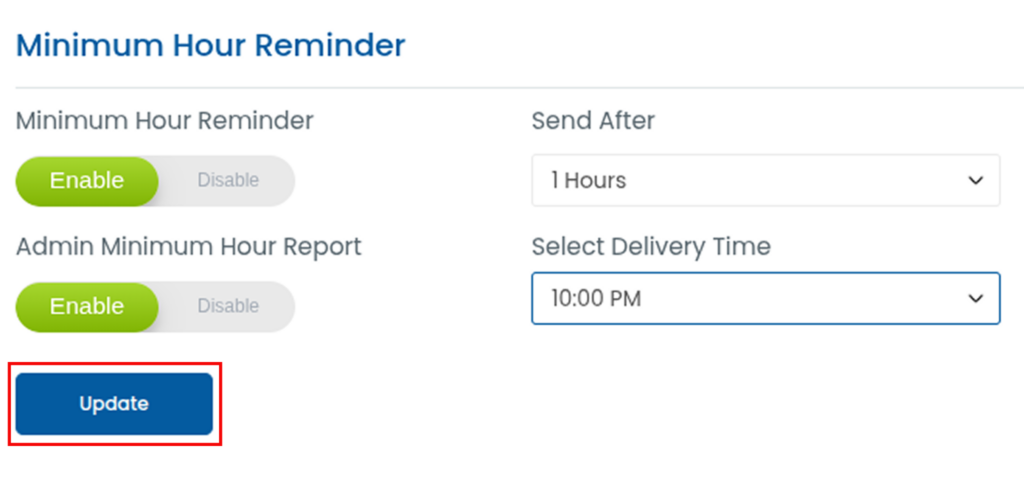
The Minimum Hour Notification feature allows administrators to receive automatic email reports listing users who have not completed the required minimum working hours. By enabling this option, admins can easily monitor attendance or productivity gaps and take necessary action in time. Follow the steps below to configure this setting.
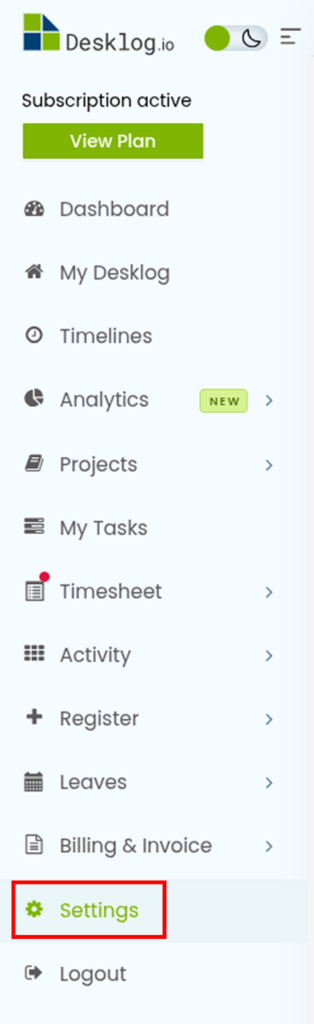
Step 1: Go to Settings
From the left menu bar of the admin panel, navigate to Settings. This section contains all system configuration options, including notification and email preferences.
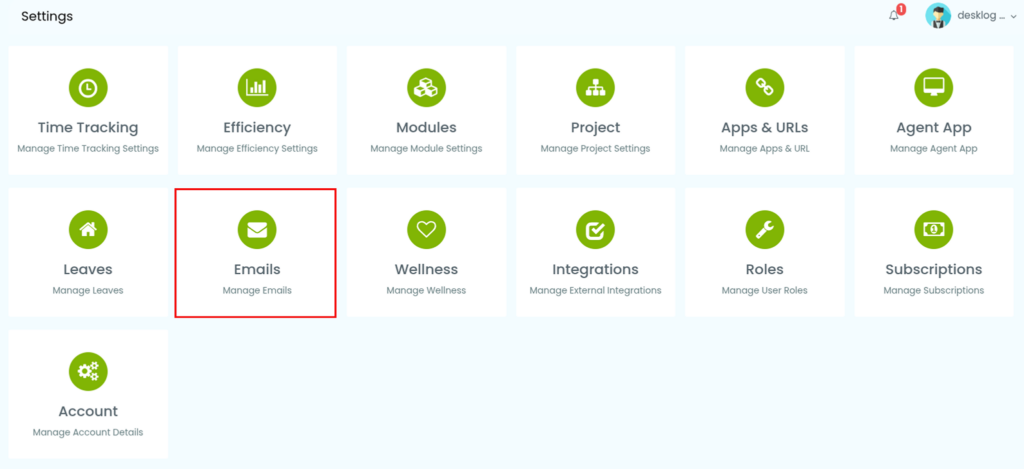
Step 2: Open the Email Settings
Inside the Settings section, select Emails. The Email settings page allows administrators to manage different types of system-generated email notifications.
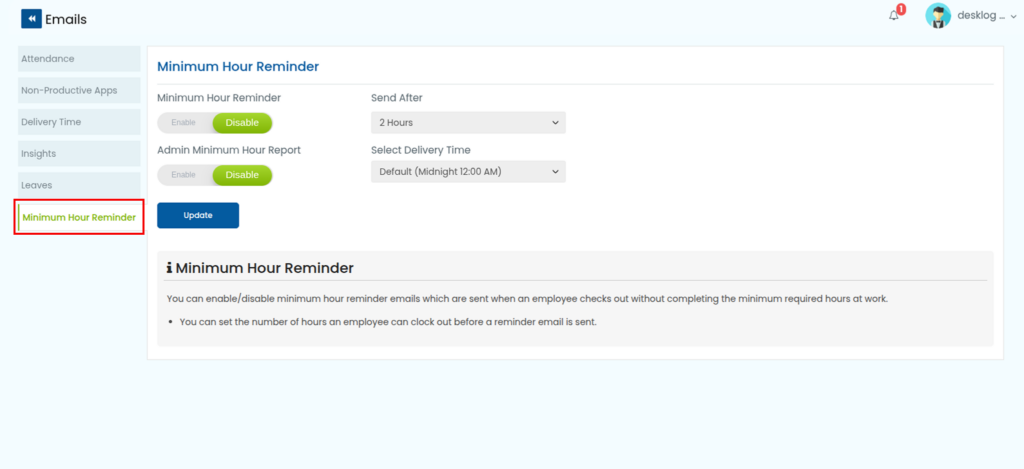
Step 3: Select Minimum Hour Reminder
In the Email settings list, locate and click on Minimum Hour Reminder. This option controls the email alerts related to users who have not met the required minimum working hours.
Step 4: Enable Minimum Hour Reminder
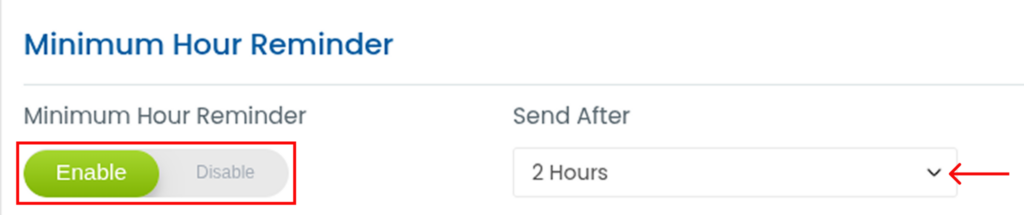
Enable the Minimum Hour Reminder option. After enabling it, select the preferred time from the Send After dropdown menu. This determines how long after the minimum hours are missed the reminder email will be triggered.
Step 5: Enable Admin Minimum Hour Report
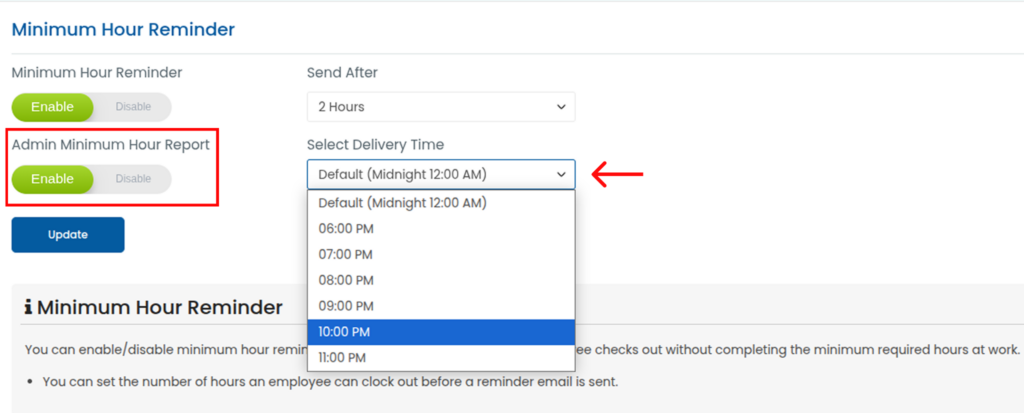
Next, enable the Admin Minimum Hour Report option. This setting ensures that the admin receives a report containing the list of users who did not complete the required hours. You can also choose the report delivery time from the dropdown menu.
Step 6: Save the Configuration
Once all the settings are configured, click the Update button to save the changes. The system will then automatically send email notifications to the admin based on the selected configuration.