
The Desklog Microsoft Entra Integration allows administrators to import users from Microsoft Entra and automatically sign them in to Desklog without requiring individual user logins.
Prerequisites
Before starting the integration process, ensure that:
- You have access to a Desklog Admin account.
- You have a Microsoft Entra Global Administrator account.
- Your organization uses Microsoft Entra (Microsoft 365).
Step 1: Open the Integration Settings in Desklog
- Log in to your Desklog Admin account.
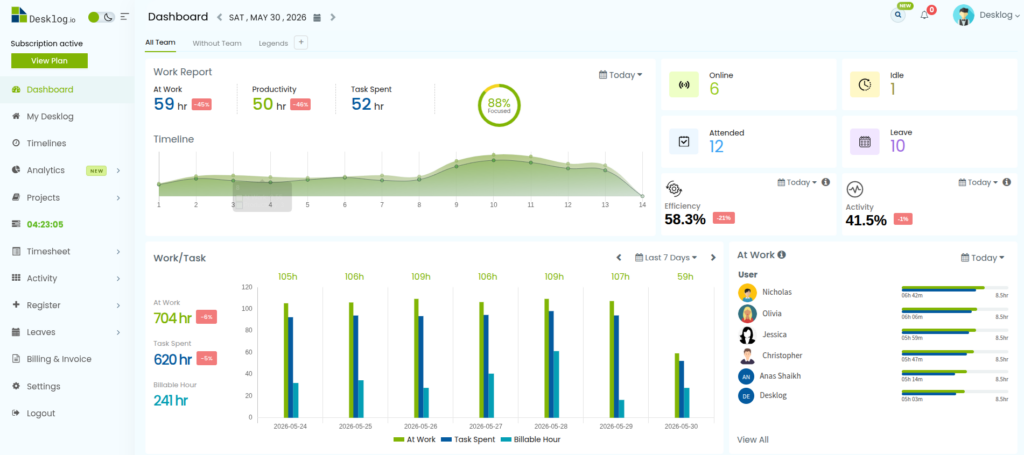
- From the left-side navigation panel, click Settings.
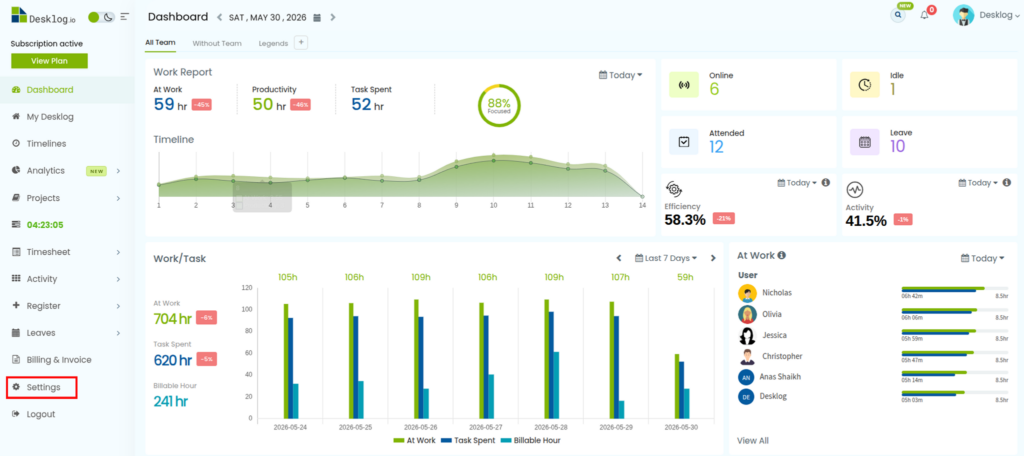
- On the Settings page, select Integrations.
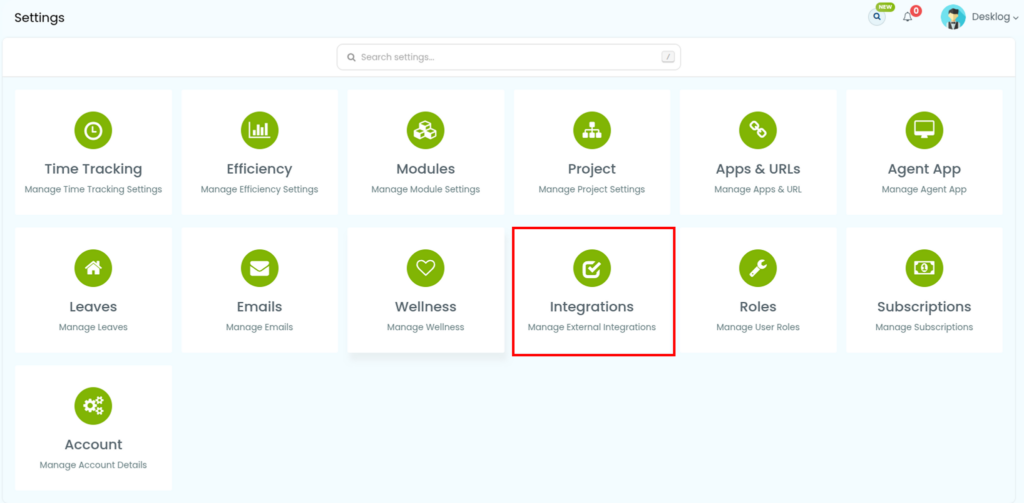
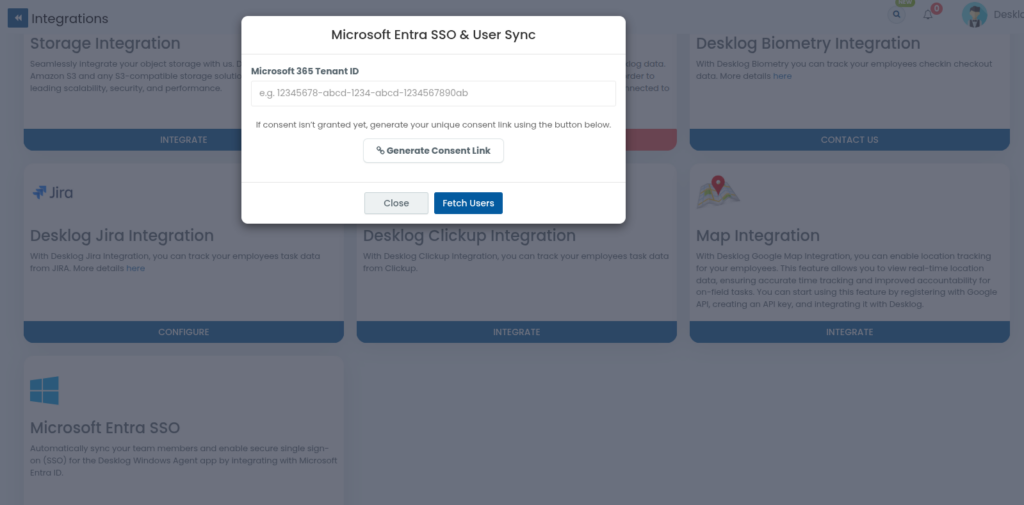
- Locate and click Microsoft Entra SSO Integration.
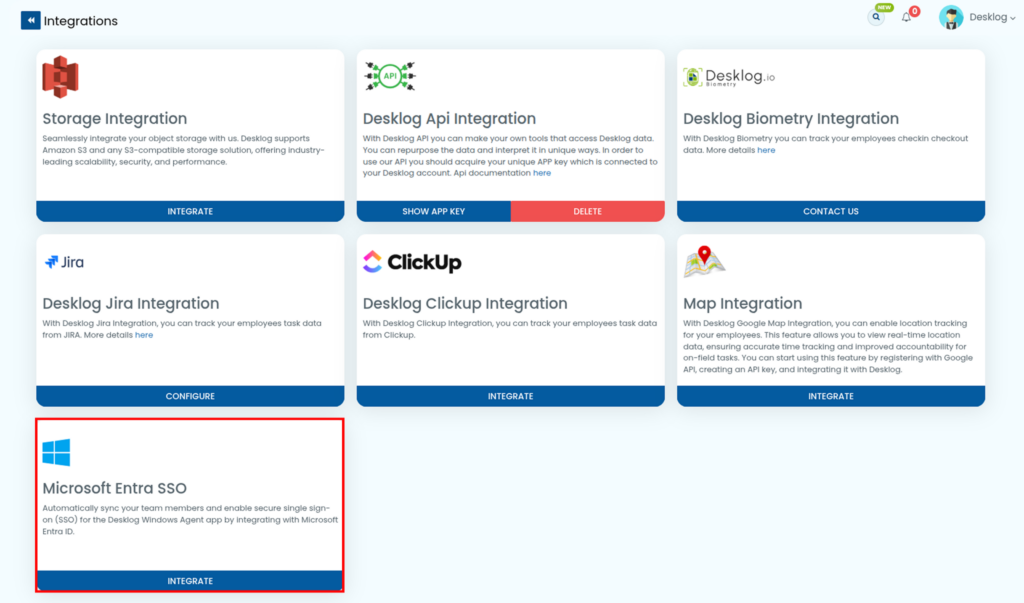
This will open the Microsoft Entra integration setup window.
Step 2: Obtain Your Microsoft 365 Tenant ID
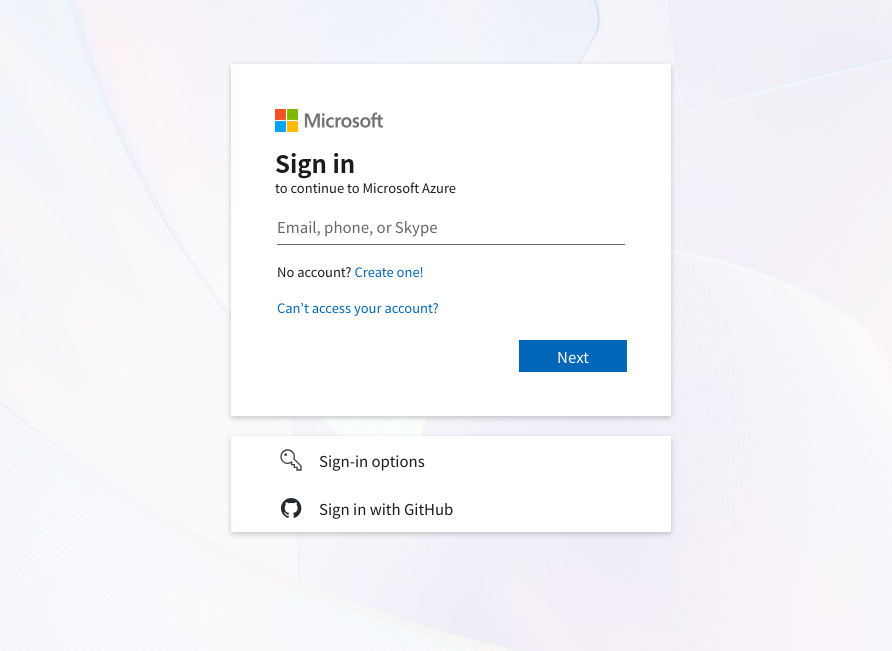
- Open entra.microsoft.com in your browser. Sign in using your Microsoft Entra administrator account.
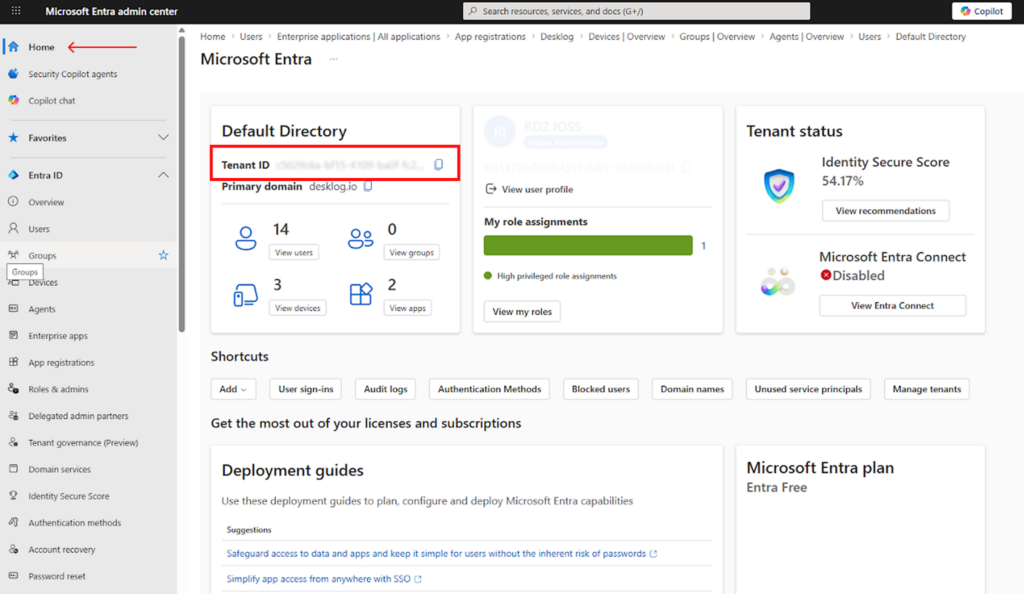
- On the Microsoft Entra Home page, locate your Tenant ID (Directory ID).
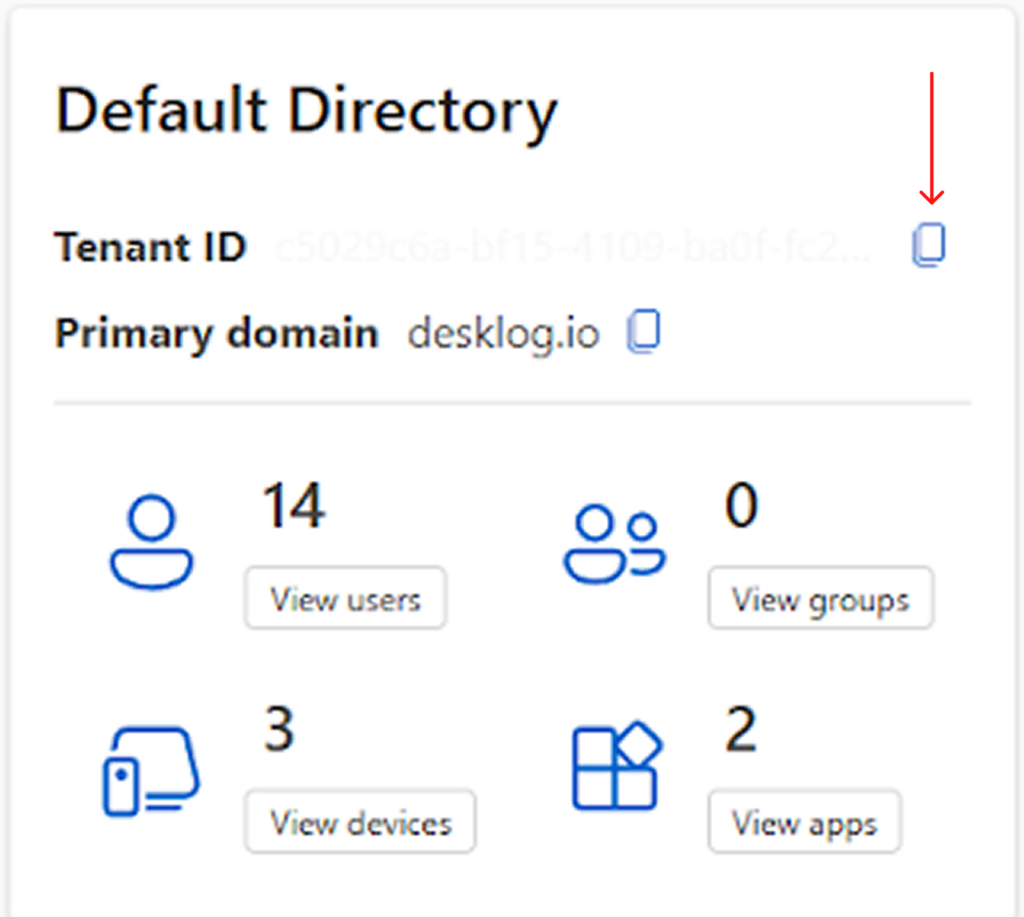
- Copy the Tenant ID.
Step 3: Configure the Tenant ID in Desklog
- Return to the Desklog Microsoft Entra Integration window. Paste the copied Tenant ID into the provided field.
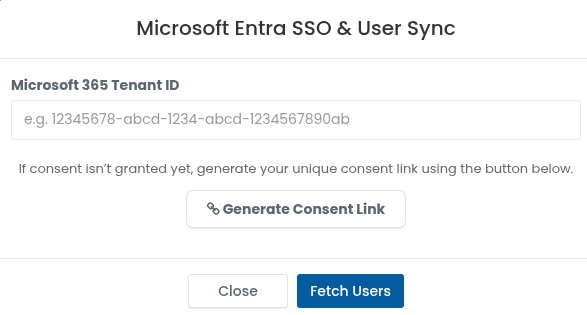
- Click Generate Consent Link.
The consent link is required to authorize Desklog to access your organization’s user information.
Step 4: Grant Consent for User Synchronization
To enable user synchronization and automatic single sign-on for the Desklog Agent application (Windows only), a one-time permission must be granted.
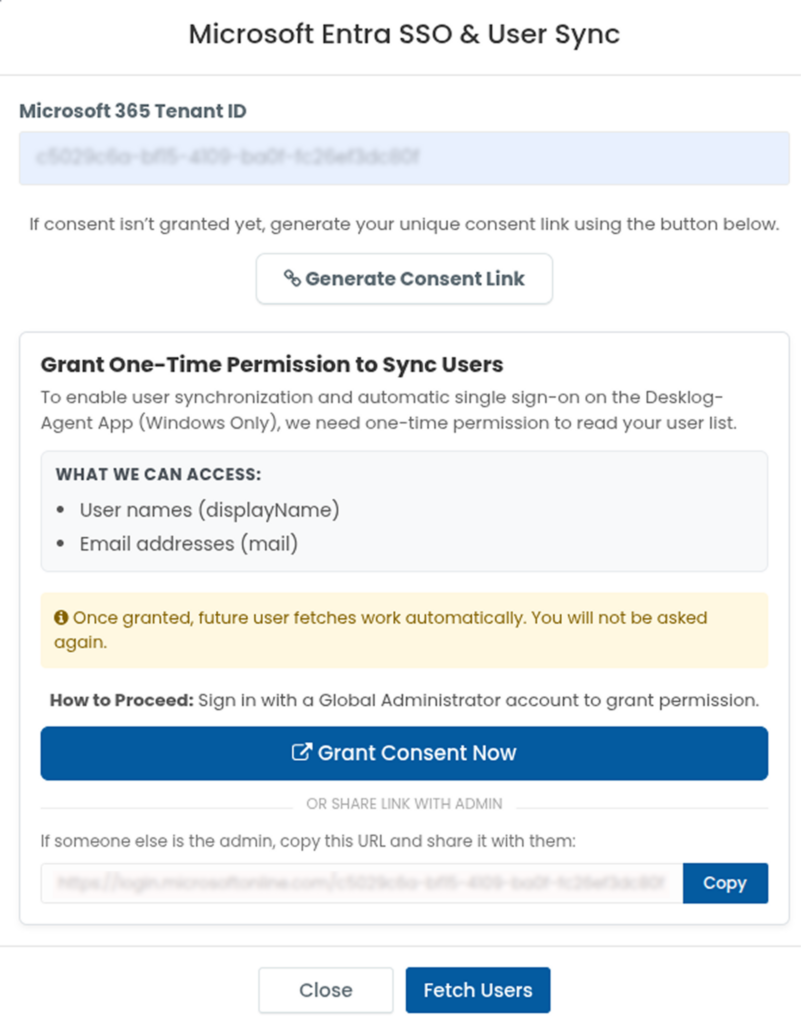
Information Desklog Can Access
Desklog only requests access to:
- User names (displayName)
- Email addresses (mail)
Important Notes
- This permission is required only once.
- After consent is granted, future user synchronization happens automatically.
- You will not be prompted again for permission.
Granting Permission
- Sign in with a Global Administrator account.
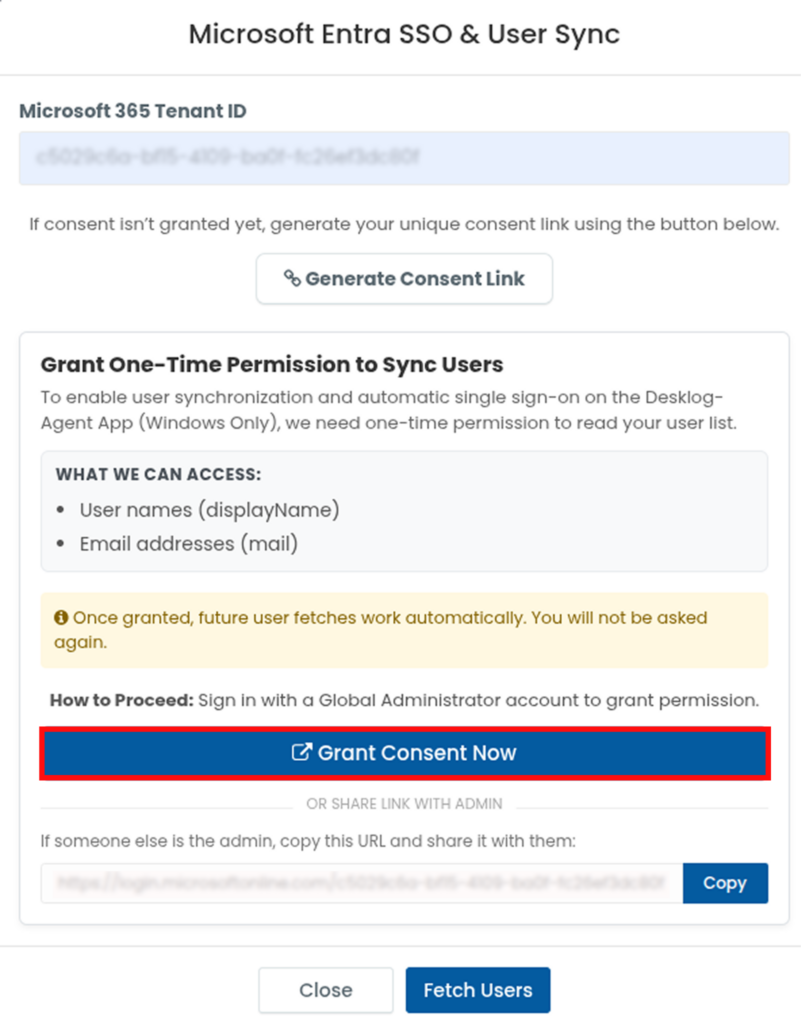
- Click Grant Consent Now if you are currently logged in with the administrator account.
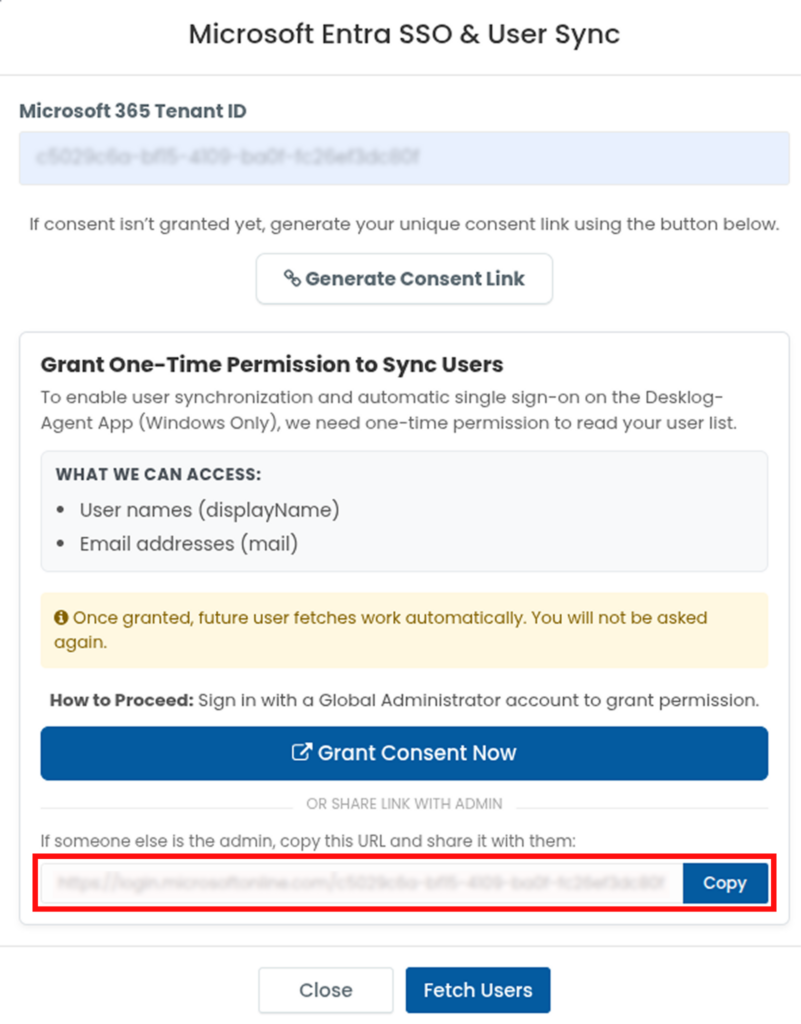
- If you are not using the administrator account, copy and share the generated consent link with a Global Administrator.
- The administrator should open the link and grant the required permissions by clicking the Accept button.
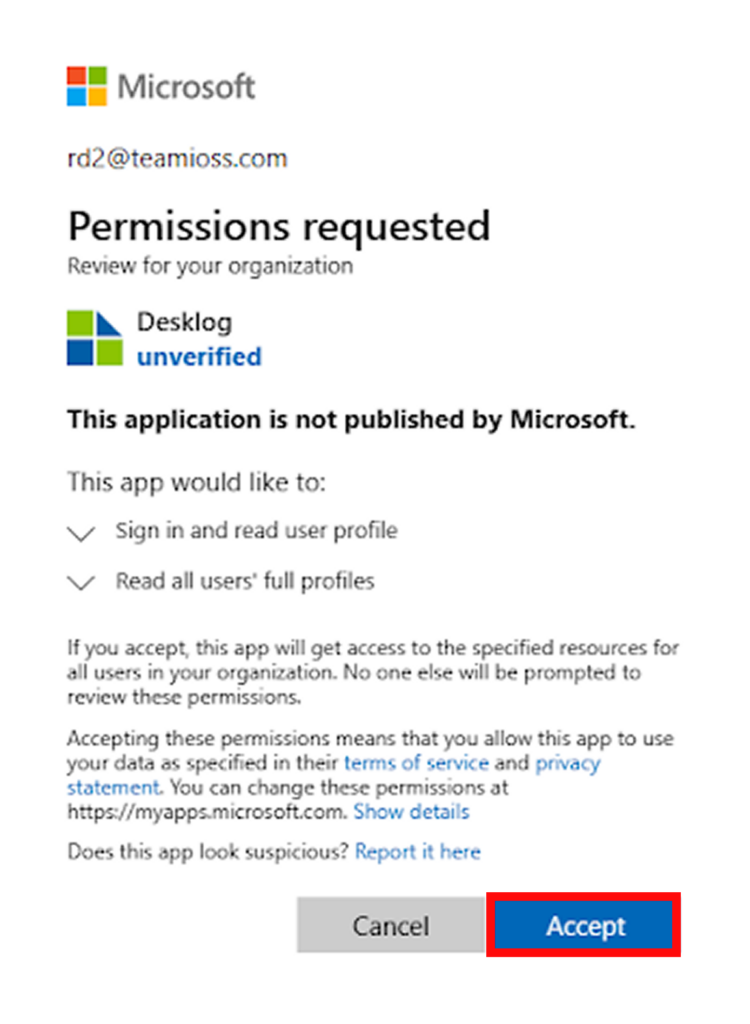
Step 5: Verify the Integration in Microsoft Entra
After consent is successfully granted:
- The user will automatically be redirected to the Microsoft Entra account.
- From the left navigation panel, select Enterprise Apps and then All Applications. Verify that Desklog appears in the list of integrated applications.
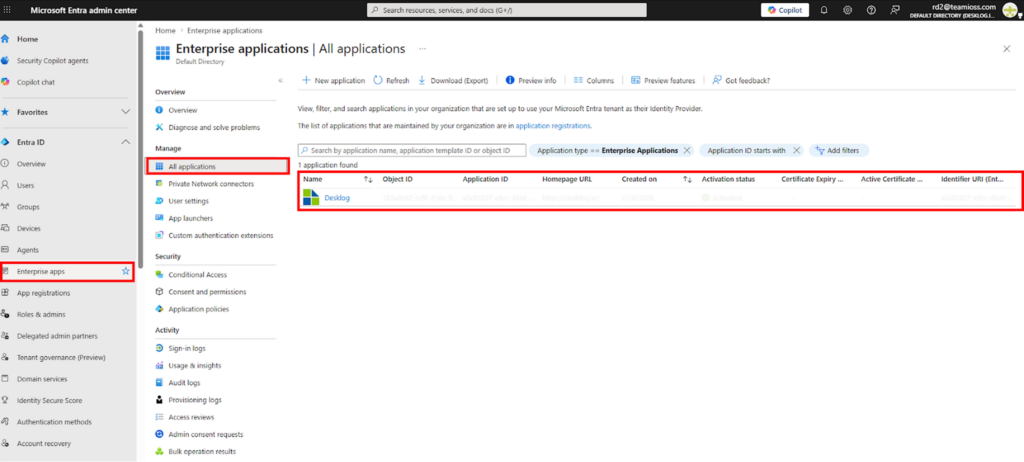
This confirms that the integration has been successfully established.
Step 6: Fetch Microsoft Entra Users for Desklog Registration
After successfully connecting Microsoft Entra to Desklog, the next step is to choose which Microsoft Entra users should be registered in Desklog.
- Return to the Microsoft Entra Integration page in Desklog. Click Fetch Users.
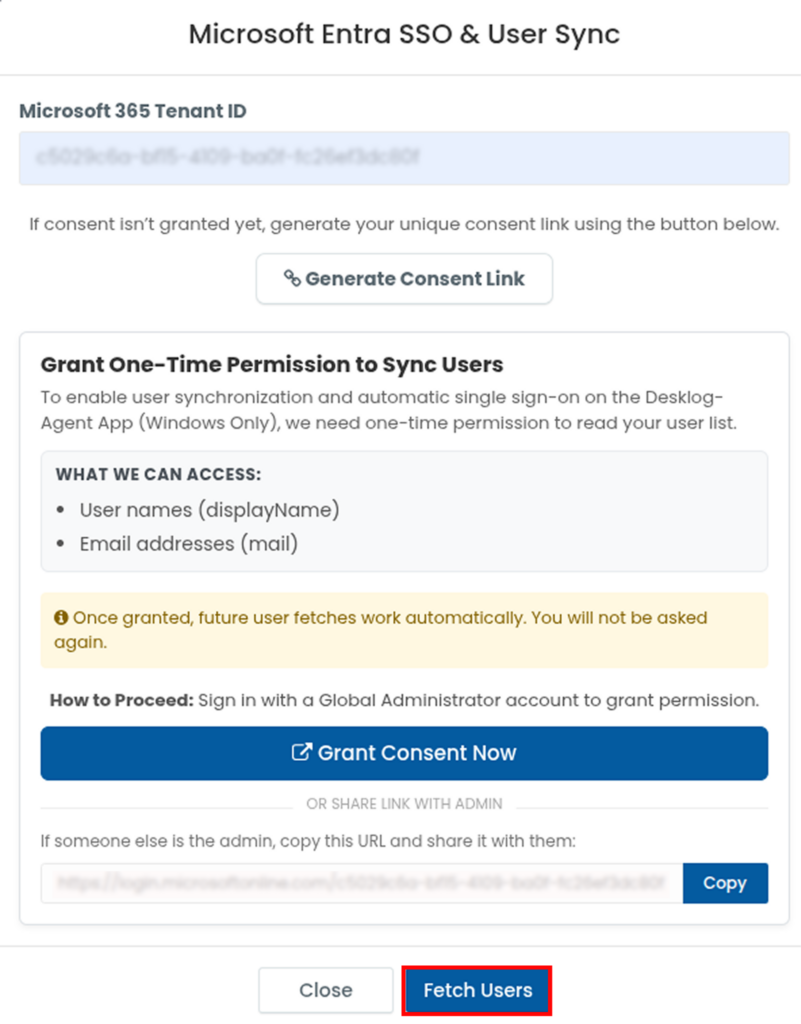
Desklog will retrieve all users registered under the connected Microsoft Entra tenant.
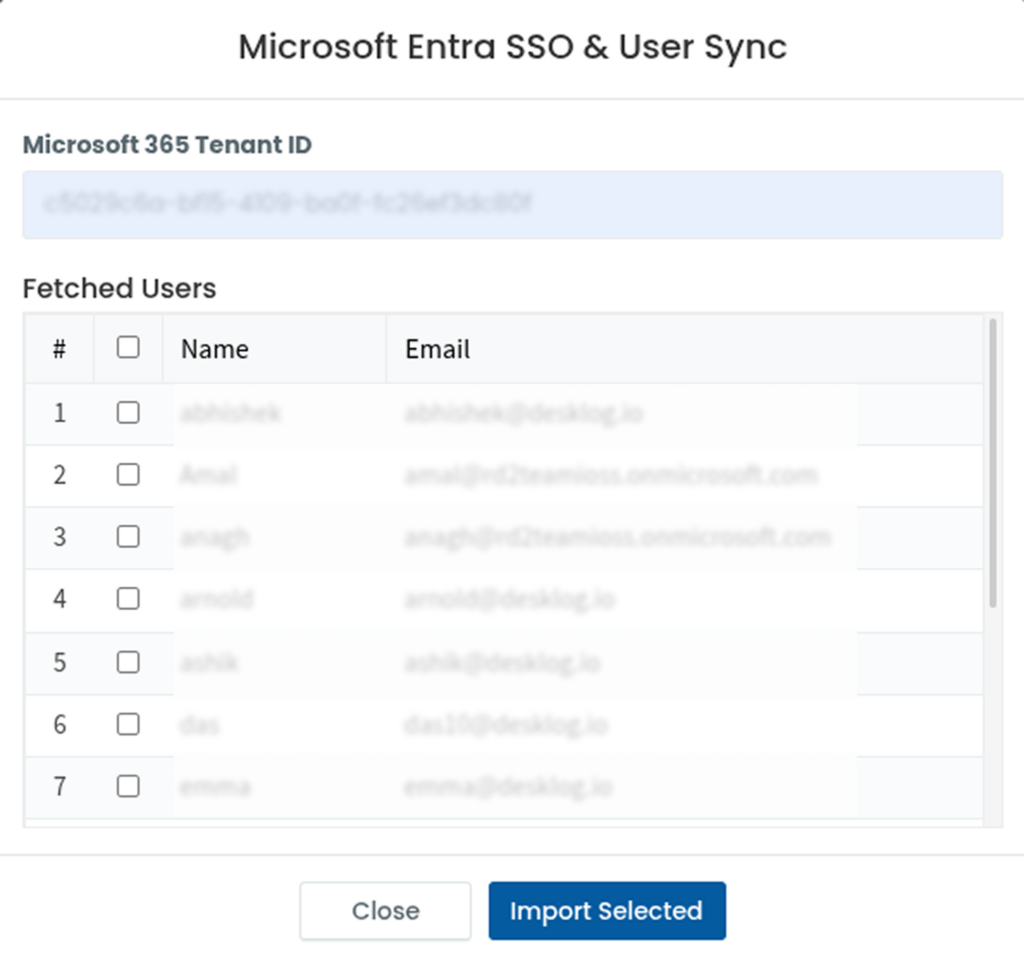
Step 7: Register Selected Users in Desklog
- Review the list and select the users you want to register in Desklog.
Note: Only the users selected during this step will be imported and registered as Desklog users.
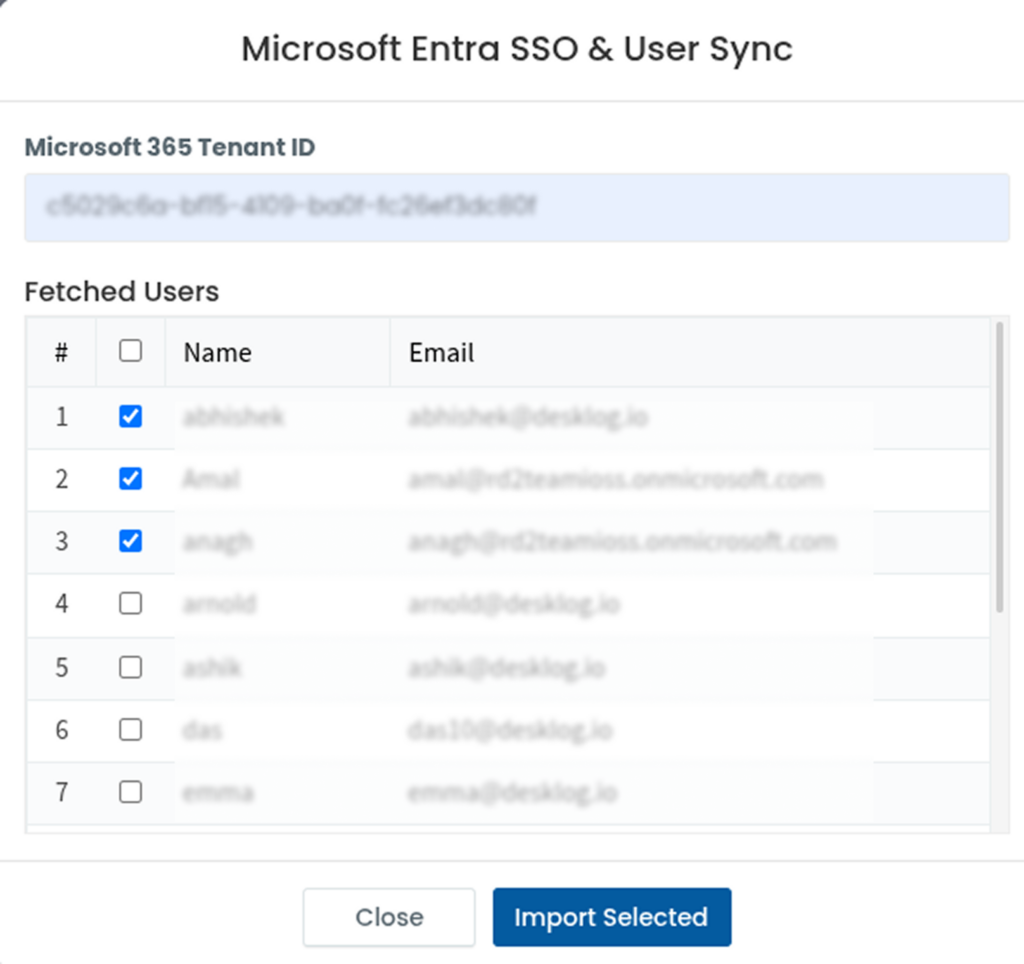
- After selecting the required users, click Import Selected.
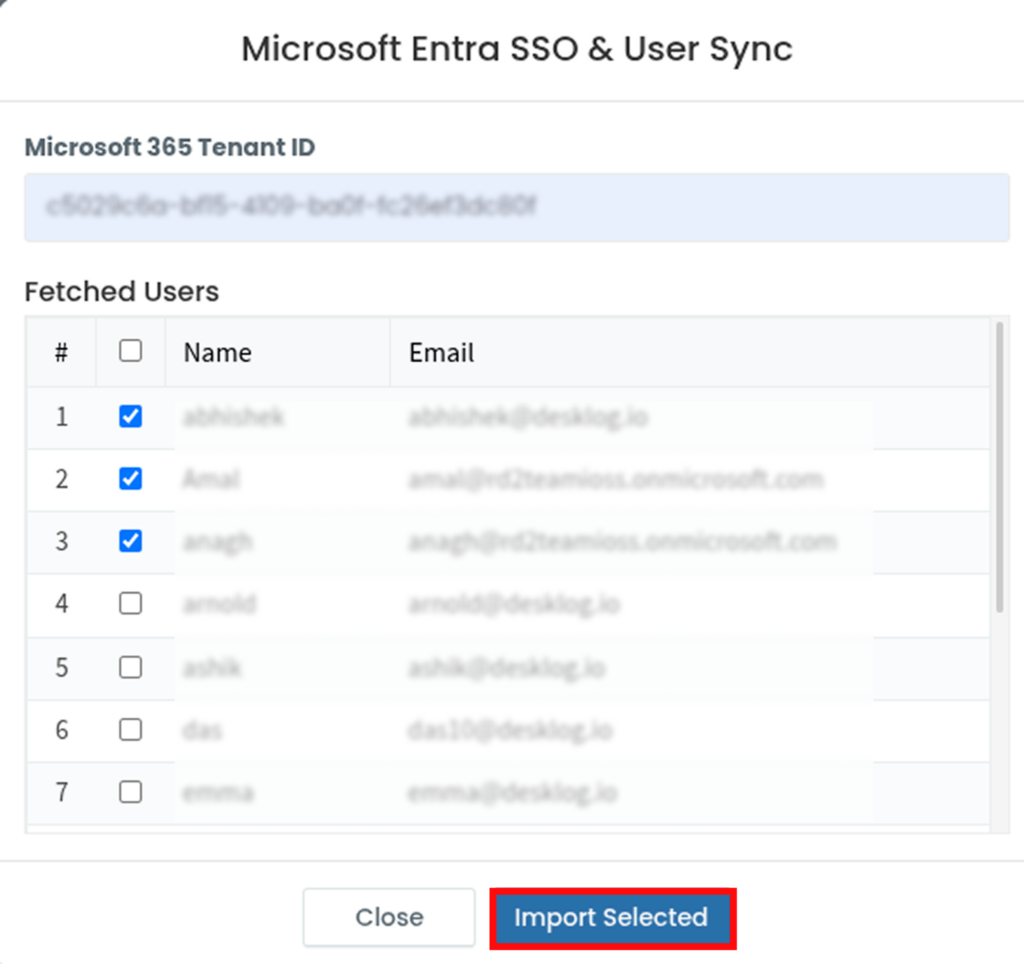
- Desklog will import and register the selected Microsoft Entra users into the Desklog system.
Step 8: Enable Automatic Desklog Sign-In for Imported Users
After users have been registered in Desklog, they can be automatically signed in to the Desklog Agent without entering separate Desklog credentials.
To enable this:
- Install the Desklog Agent on the Windows systems of the imported users.
- Ensure that the users are signed in to their computers using the same Microsoft account that is registered and synced through Microsoft Entra.
- When the Desklog Agent is launched, the user will be automatically authenticated and signed in through Microsoft Entra Single Sign-On (SSO).
Important:
- The Desklog Agent App must be installed on the user’s device for SSO to work.
- For organizations deploying Desklog across multiple devices, the MSI version of the Desklog Agent is recommended, as it supports easier bulk installation and deployment.