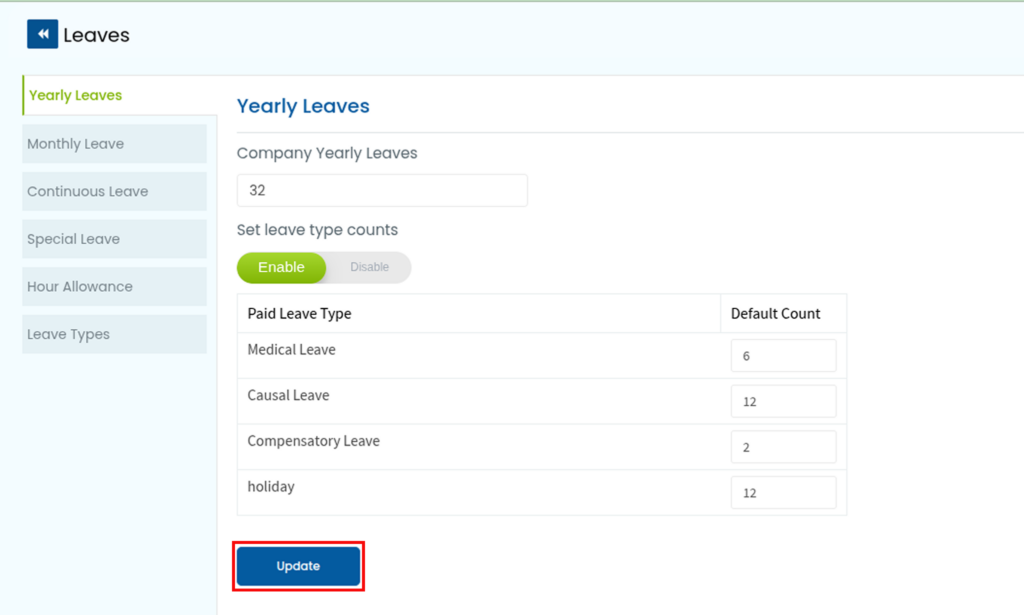
Desklog allows administrators to easily configure yearly leave allocations and assign specific leave counts for each leave type. Follow the steps below to set up leave type counts.
METHOD – 1
Step 1: Open Leave Configuration
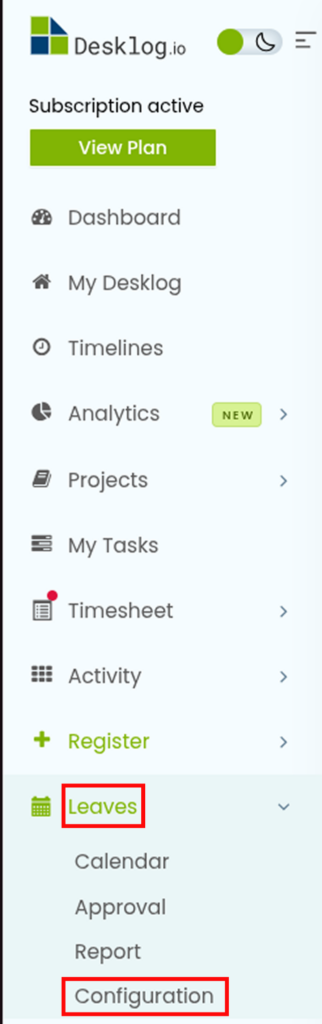
From the side menu, navigate to Leaves and select Configuration to access the leave management page.
Step 2: Edit Leave Counts for All Employees
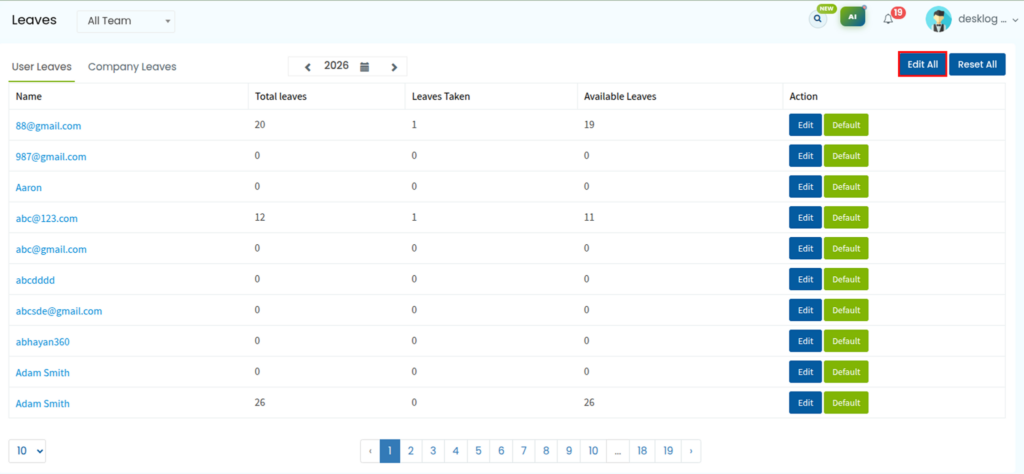
Click the Edit All button located in the top-right corner to update leave type counts for all employees at once.
Step 3: Update the Leave Count
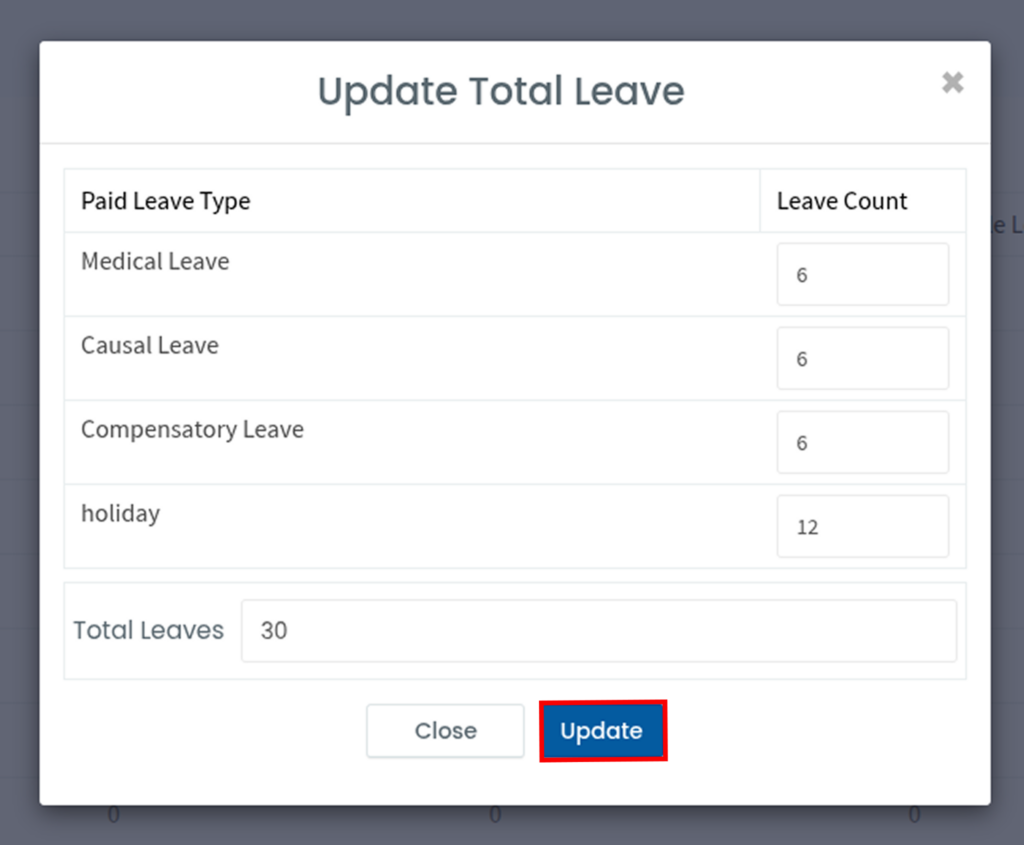
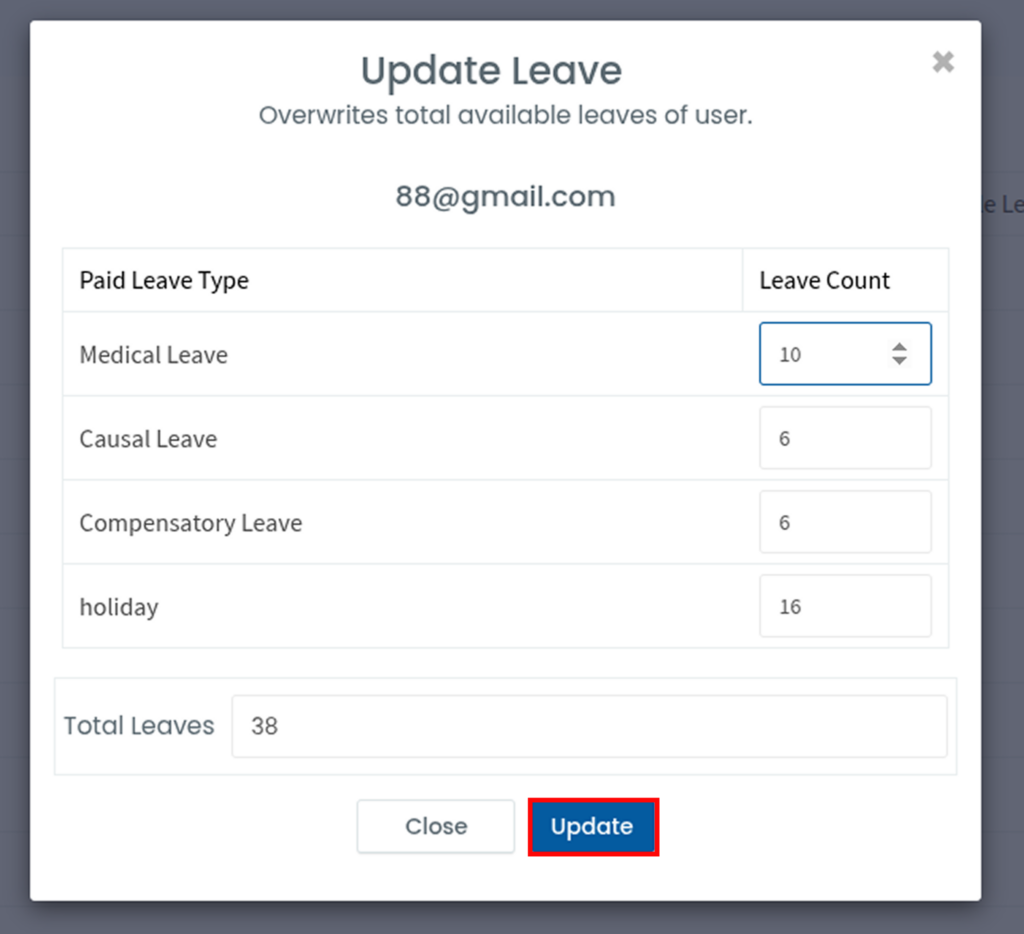
Enter the required leave count for each leave type and click Update to save the changes. The updated leave allocation will be applied to all employees.
Step 4: Edit Leave Counts for an Individual User
To configure leave type counts for a specific employee, click the Edit icon next to the corresponding user’s name.
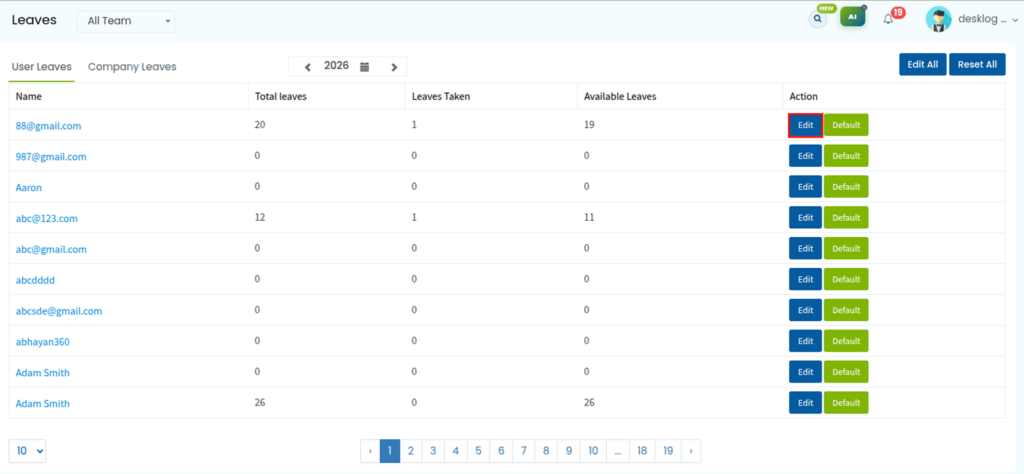
Step 5: Save the Changes
Modify the leave count as required and click Update to apply the changes for that individual employee.
METHOD – 2
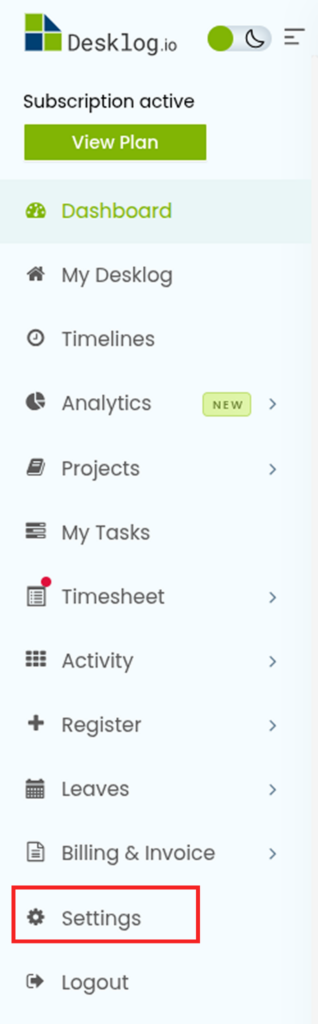
Step 1: Open Settings
From the Desklog dashboard, navigate to the Settings option available in the menu bar. This section allows administrators to configure various organizational settings, including leave policies.
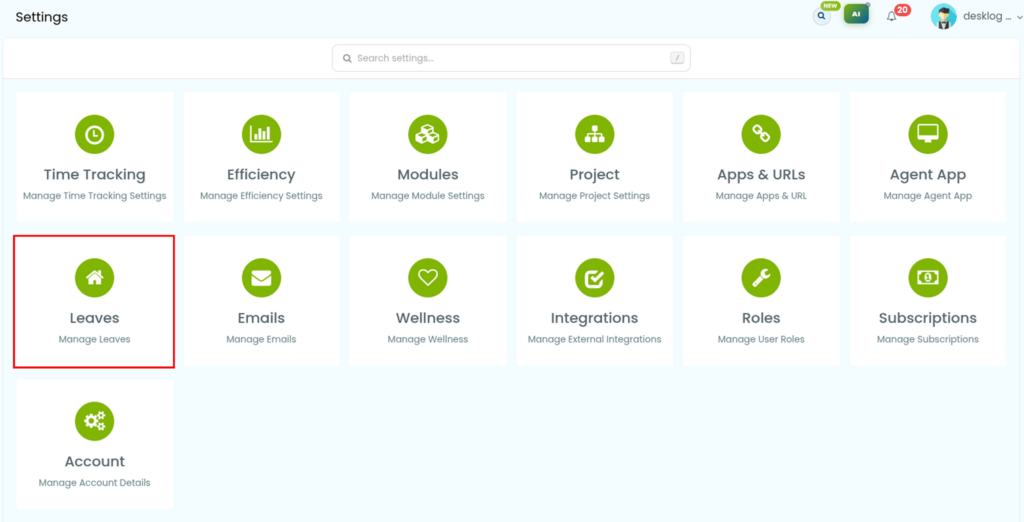
Step 2: Access Leave Settings
In the Settings window, select Leaves from the left panel to open the leave management configuration page.
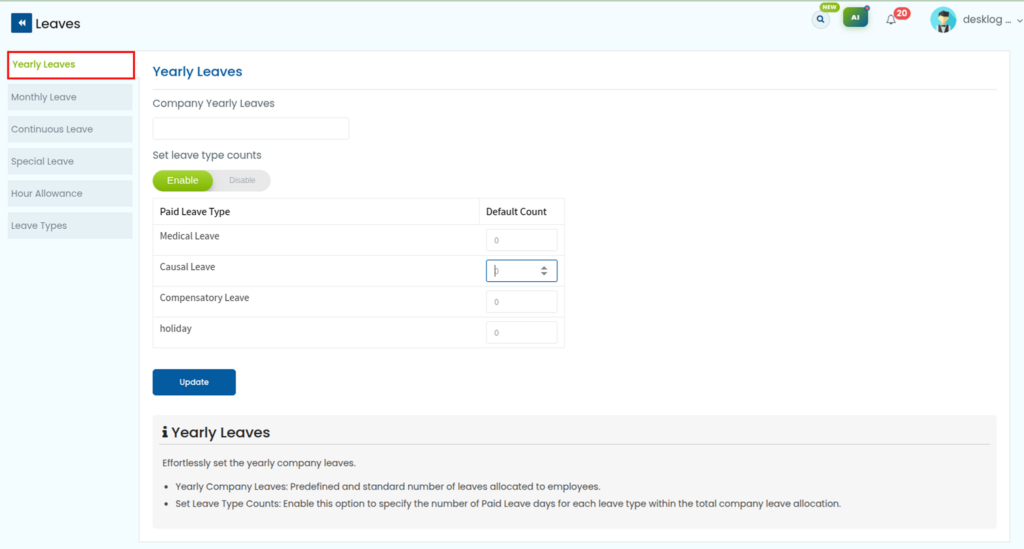
Step 3: Open the Yearly Leaves Section
Under the Leave Configuration page, click on Yearly Leaves. This section allows you to define your organization’s annual leave allocation and customize leave policies.
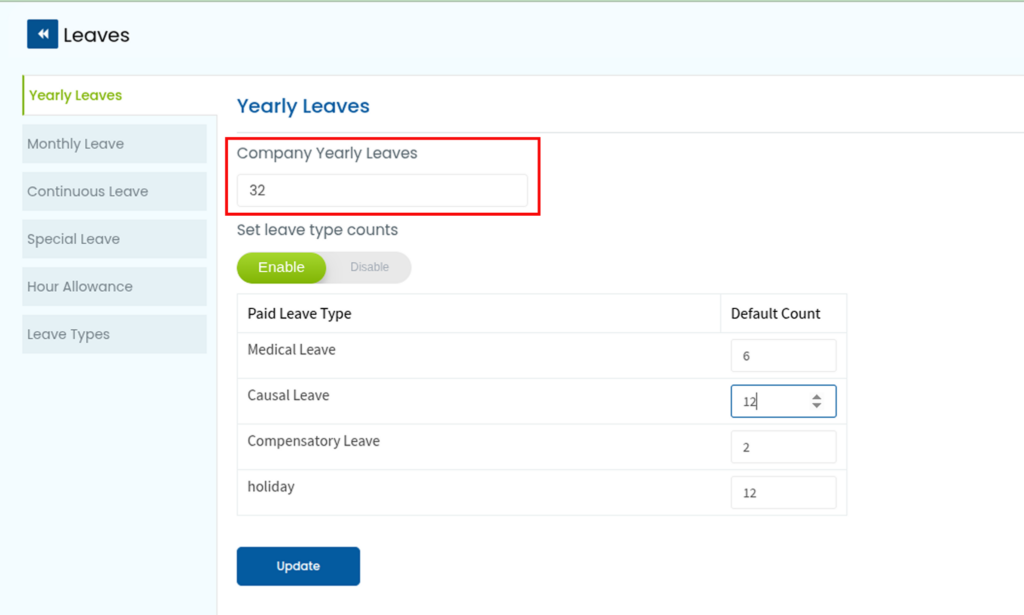
Step 4: Set the Yearly Company Leaves
In the Yearly Company Leaves section, enter the total number of leave days employees are entitled to receive each year. This serves as the overall annual leave allocation for your organization.
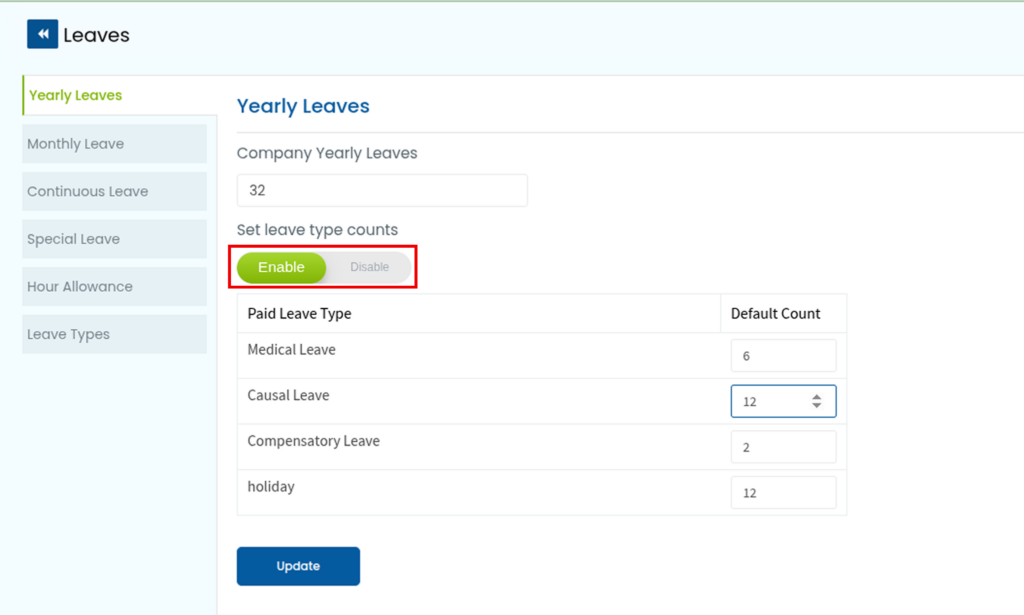
Step 5: Enable and Configure Leave Type Counts
Enable the Set Leave Type Counts option to assign a specific number of days to each leave type, such as Paid Leave, Sick Leave, or Casual Leave. The combined leave type counts should be allocated within the total yearly company leave limit.
Step 6: Save the Configuration
Once you have assigned the required leave counts for each leave type, click the Update button to save the changes. The configured leave allocation will then be applied according to your organization’s leave policy.