
To use Geo Tracking on the mobile app, please enable the Web Timer in your Desklog web settings first
To Enable Web Timer:
Step 1: Log in to your Desklog.
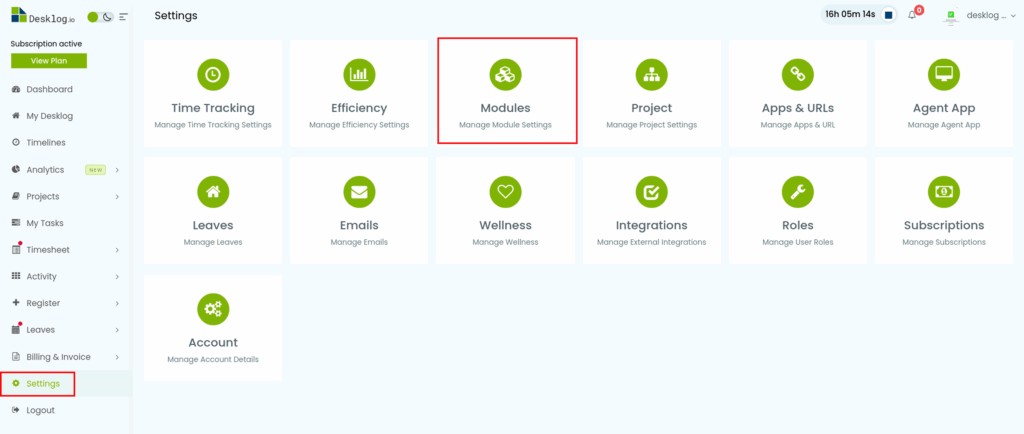
Step 2: Click on Settings from the left-side panel.
Step 3: Go to Modules.
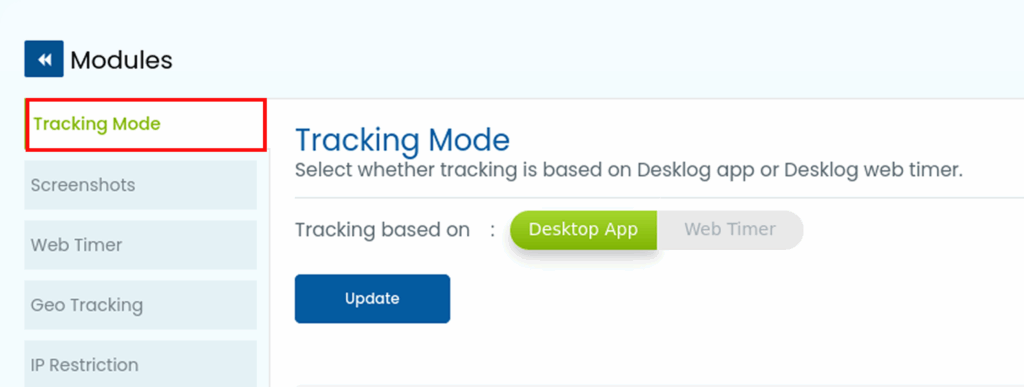
Step 4: From the list of options, select Tracking Mode.
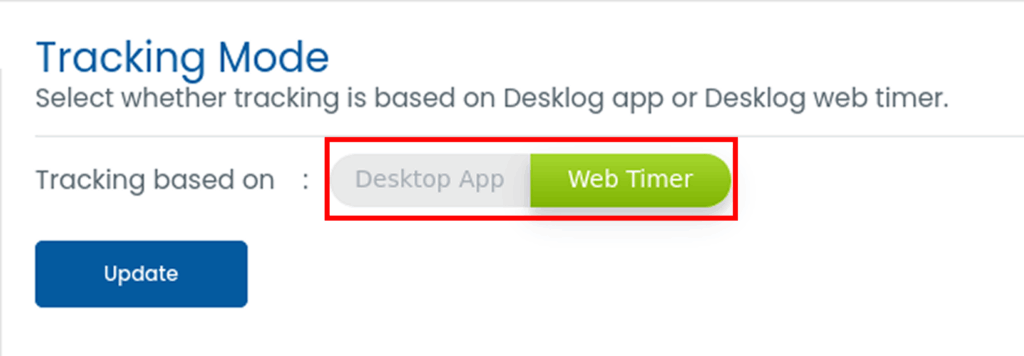
Step 5: Choose Web Timer as your tracking method instead of the Desktop App.
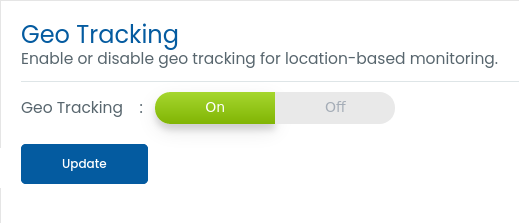
Step 6: Once the Web Timer is enabled, go to Module Settings and select Geo-Tracking.
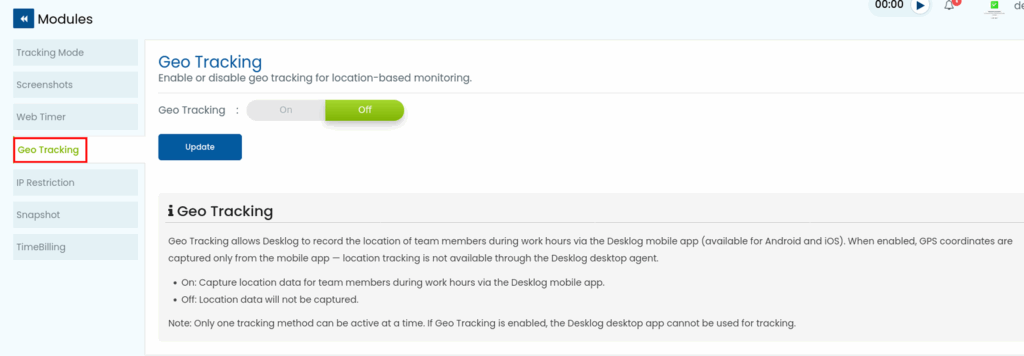
Step 7: Toggle the switch to turn it On. Click Update.
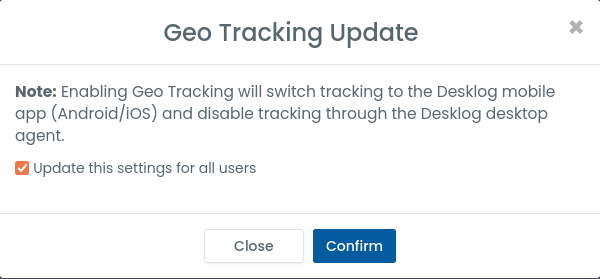
Step 8: A confirmation popup will appear – check the box to apply the settings for all users and click Confirm.
You’ve successfully enabled Geo Tracking in Desklog.