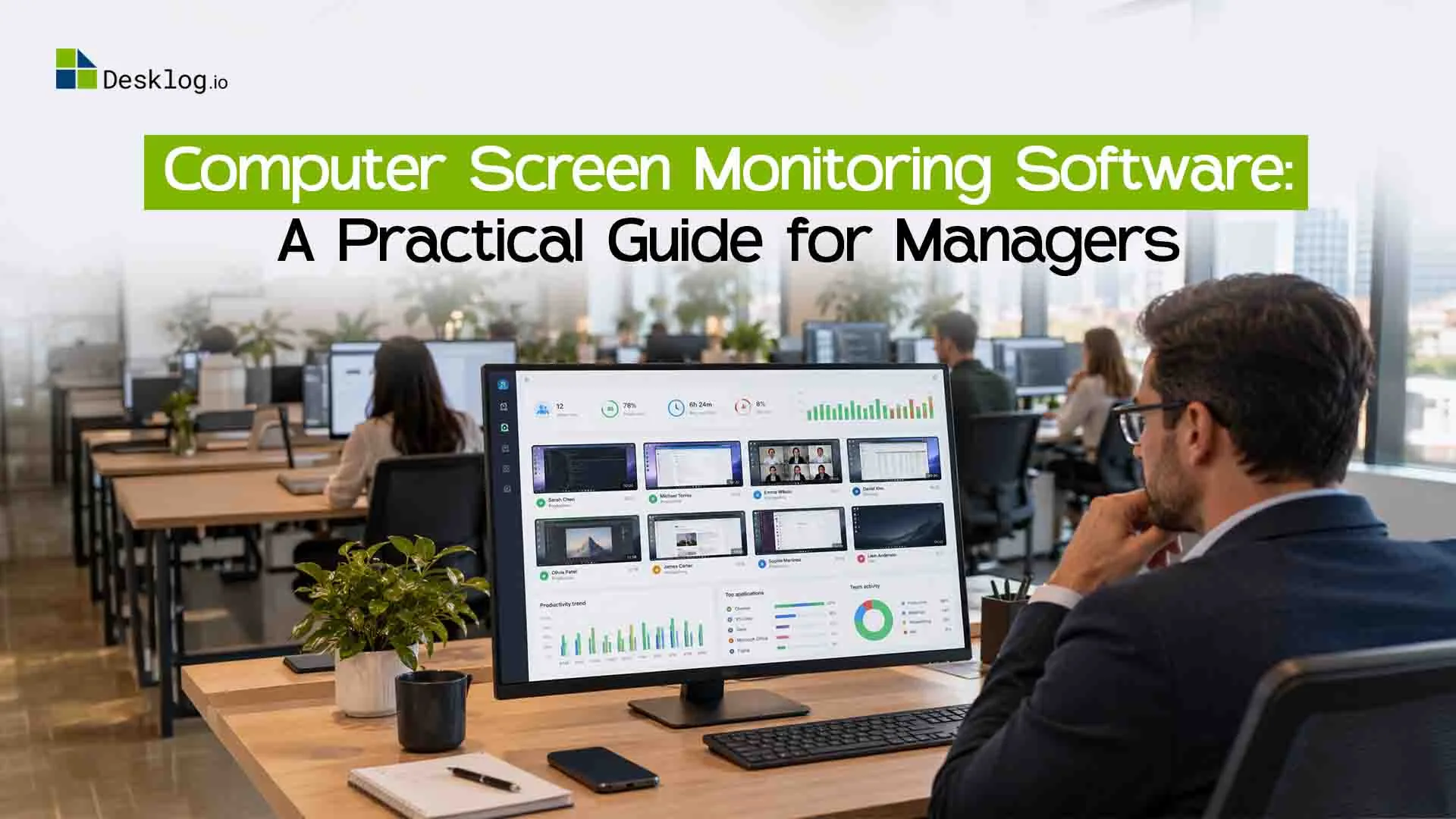

Computer screen monitoring software shows managers how work gets done on company computers, usually through screenshots, activity logs, or a live view. Teams use it to see where the working day goes, catch security problems early, and back up client billing with proof of work. When it is rolled out badly, people feel watched, and trust drops fast.
This guide covers how the tools work, which features are worth paying for, what the law expects, and how to introduce one so your team stays on your side. It is written for business owners, HR leads, and managers who run remote, hybrid, or in-office teams.
What Is Computer Screen Monitoring Software?
Computer screen monitoring software is a program that records or displays what happens on an employee's computer during work hours. It can take screenshots at set times, log which apps and websites are open, or let a manager watch a screen live. You will also see it called PC monitoring software, desktop monitoring software, or screen tracking software, and these names mostly describe the same kind of tool. It is different from plain time tracking, which only records hours, and from full employee monitoring suites, which may also track email, files, and keystrokes.
How Does Screen Monitoring Software Work?
A small program called an agent is installed on each work computer. It collects activity in the background and sends it to a secure online dashboard. Managers sign in to that dashboard to read reports, look at screenshots, and see how time was spent. Most setups take three steps: install the agent, choose what gets recorded and how often, and invite managers to view the dashboard.
Here is what the agent usually collects:
- Screenshots taken at set intervals
- The apps and websites that were open, and for how long
- Active time and idle time
- Start and end times for each work session
Types of Screen Monitoring
Not every tool watches in the same way, and the method you pick changes how your team will feel about it. Some tools take a picture every few minutes, some let you watch live, and some record everything as video. Each one gives a different level of detail and asks for a different level of trust. Here is a quick look at all three.
Periodic Screenshots
The software captures screenshots at regular intervals, such as every 5 or 10 minutes. With a Smart Time Tracker with Screenshots, managers can get a clear picture of the workday without monitoring employees live. This is one of the most common screenshot-tracking methods and is easy to explain to the team.
Live Screen Viewing
A manager opens an employee's screen and sees it as it happens. It is useful for support desks, training, and checking on something that looks wrong. Because it feels the most direct, it works best when used sparingly and with clear rules.
Screen Video Recording
The tool records the screen as a video that can be replayed later. It shows the most detail, but the files are large and the privacy impact is higher. Most teams only use it for sensitive work, such as handling financial data.
| Method | Detail | Privacy | Load | Best For |
|---|---|---|---|---|
| Periodic screenshots | Medium | Medium | Low | Daily team oversight |
| Live viewing | High | High | Low | Support, training, investigations |
| Video recording | Very high | Very high | High | Sensitive or regulated work |
Real-Time Screen Monitoring
Live monitoring lets a manager watch one or more screens at the same moment. Many tools show a grid of small screens, each marked as active, idle, or away, so a manager can scan a whole team in seconds. This is handy when someone new is learning a process, when a customer issue is unfolding, or when something looks off and needs a quick check. The drawback is time and tone. Watching screens takes a manager's attention, and employees can feel uneasy if they never know when someone is looking, so most teams use live view only when they have a clear reason.
Key Features to Look For
Features are where tools differ most, and a long list does not always mean a better product. Start with what you actually need to see, then check that the tool does those things well. Here are the features that matter most in daily use:
- Adjustable screenshot timing. You should be able to set how often pictures are taken and change it per team.
- Multi-monitor capture. People who use two screens should have both recorded, or you will miss half the work.
- Light on the computer. The agent should run quietly without slowing down laptops or using up the network.
- Active and idle time. The tool should tell the difference between someone reading a document and someone who stepped away.
- App and website reports. Clear charts show where time goes without anyone scrolling through hundreds of images.
- Activity timeline. Screenshots tied to a time and an app make it easy to see what was going on at any moment.
- Search and quick jump. When something goes wrong, you should be able to go straight to that moment.
- Privacy controls. Look for blurring, pausing, and a way to skip personal windows and password fields.
- Roles and permissions. Only the right managers should see the data.
- Windows, Mac, and Linux support. Mixed-device teams need one tool that works on all of them.
Looking for Clear Team Insights Without Heavy Monitoring?
See how Desklog shows where your team's hours go with automatic time tracking and optional, maskable screenshots.
Get Started FreeAdvanced Features and Their Privacy Trade-Offs
Some tools go further than screenshots and activity logs. These extras can be useful in a few situations, but each one brings more risk and more questions from your team. Before you switch any of them on, ask yourself whether the problem you are solving really needs it.
Keystroke Logging
This records what a person types. It can capture passwords, private messages, and personal details, which makes it risky under many privacy laws. Most teams do not need it.
Webcam Monitoring
Some security-focused teams use the webcam to confirm that the right person is at the computer. It is a very personal form of monitoring, especially for people working from home, and it needs clear consent.
Remote Control and Blocking
Remote control lets IT staff fix a problem on someone's computer, and blocking stops access to certain sites or apps. Both are practical for support and security work. Tell employees exactly when and why they might be used.
Check which of these a tool offers, and turn off anything you do not need.
Benefits of Screen Monitoring Software
The main benefit is a clear view of how work actually happens, especially when people are not in the same room. Managers stop guessing and start working from facts when they talk about workload, deadlines, and performance. Teams that bill by the hour can also show clients what was done, which cuts down on arguments over invoices. Used with care, the data also helps you spot people who are overloaded or stuck before it turns into burnout.
- Better visibility for remote and hybrid teams
- Fairer reviews based on real activity, not impressions
- Proof of work for client billing
- Early signs of overload or uneven workloads
- Records that support security and compliance checks
Security and Fraud Use Cases
Many companies start with a security worry and not a productivity one. Screen records can show how a data leak happened, who used a shared login, or whether private files were sent outside the company. They can also reveal cases where someone is doing outside work during paid hours, which is hard to see in a simple timesheet. The records are best treated as a reason to start a conversation, not as proof of guilt on their own.
- Insider threats and data leaks: unusual file copying or uploads to personal accounts
- Double jobbing: paid hours spent on another employer's work
- Shared logins: someone using a colleague's computer or account
- Early signs someone may leave: a sudden drop in activity or heavy time on job sites, which is a signal to check in, not a reason to accuse
Pros and Cons
No tool is all good or all bad, and a fair look at both sides will help you decide. The advantages are real, but so are the risks, and the risks mostly come from how a tool is used rather than from the software itself. The table below sets them side by side.
| Pros | Cons |
|---|---|
| Clear view of how time is spent | Can feel invasive if introduced poorly |
| Proof of work for clients | Risk of judging people on screenshots alone |
| Helps spot overload and bottlenecks | Needs a written policy and regular upkeep |
| Supports security and compliance | Some legal rules apply, depending on location |
| Useful for remote teams | Costs money and manager time |
Is Screen Monitoring Software Legal?
In most places, employers can monitor work computers if they have a valid reason, tell employees, and handle the data with care. The details change a lot between countries, and sometimes between states or regions. What is allowed in one country can break the law in another, so check the rules where your employees actually work. The notes below are general information and not legal advice, so have a lawyer look at your policy before you roll anything out.
United States
There is no single federal law that bans employers from monitoring company computers. Some states, including New York, Connecticut, and Delaware, require employers to give written notice before monitoring electronic activity. California also has privacy rules that cover employee data.
European Union
Under GDPR, you need a lawful reason to collect employee data, you must be open about it, and you must collect only what is necessary. Many companies run a data protection impact assessment before starting. Some countries, such as Germany, also involve works councils in these decisions.
United Kingdom
The Information Commissioner's Office publishes guidance on monitoring workers. It expects employers to have a clear purpose, tell staff what is being tracked, and avoid monitoring that is excessive for the job.
India
India has no single law written only for workplace monitoring. The Digital Personal Data Protection Act, 2023 covers how personal data is handled, so employers should be clear about purpose, keep data secure, and keep notices in writing.
How to Introduce Screen Monitoring Without Hurting Trust
Most of the damage from monitoring comes from surprise. People who find out by accident assume the worst, while people who were told in advance and given reasons tend to accept it. Plan the rollout like a change in how the team works, because that is what it is. These six steps help:
- Write the policy first. Say what is recorded, when, why, and who sees it.
- Tell the team before you start. Explain your reasons in a meeting and give people time to ask questions.
- Collect only what you need. If screenshots answer your question, skip keystrokes and webcams.
- Stay out of personal time. Pause tracking outside work hours and during breaks.
- Read summaries, not every screenshot. Weekly trends tell you more than single images.
- Use the data to help. If someone looks stuck, ask how you can help before you assume they are slacking.
All-in-One Monitoring vs Single-Purpose Tools
Some tools only take screenshots, while others also handle time tracking, attendance, project hours, and reports. A single-purpose tool is simple and often cheaper at first, and it can be enough for a very small team. The trouble comes when your needs grow and you end up with three separate tools that do not share data. An all-in-one platform keeps everything in one place, which makes reports easier and saves your team from learning several systems.
How to Choose the Right Software: A Buyer's Checklist
Picking a tool is easier when you know which questions to ask before you see a demo. Write down the problem you want to solve, then use the list below to compare options side by side. If a vendor cannot answer a question clearly, treat that as useful information.
- Does it run on every device your team uses?
- Can you control how often screenshots are taken, and can you blur or pause them?
- Does the agent run lightly, without slowing computers?
- Are reports easy enough that managers will actually open them?
- Can you set who sees what?
- Where is the data stored, and for how long?
- Is there a free trial, and is the pricing easy to understand?
- How quickly does support reply?
Is Screen Monitoring Right for Your Business?
It depends on your team, the kind of work you do, and the culture you want. It tends to work well when people are remote, when you bill clients by the hour, or when you handle sensitive data. It is a poor fit when your team is small and already close, or when work is judged only by finished results and not by hours. If your team already feels distrustful, adding monitoring without fixing that first can make things worse.
- Good fit: remote teams, agencies, support desks, and companies that handle sensitive data
- Think twice: very small teams, creative roles with irregular hours, and workplaces where trust is already low
How Much Does Lost Time Cost?
Before you buy a tool, it helps to put a rough number on what you are trying to fix. The formula is simple: average hourly cost × hours lost per person per day × working days × number of employees. The result is an estimate, not a promise, but it shows whether the problem is big enough to be worth solving. Run it with your own numbers, and be honest about how many hours are really lost.
Free vs Paid Screen Monitoring Software
Free tools can be a good way to test the idea with one or two people. Most of them limit the number of users, keep history for only a short time, or offer basic reports with few privacy controls. Paid plans usually add more detailed reports, longer storage, better support, and tighter security. If you are protecting client data or managing more than a handful of people, a paid plan is usually worth the cost.
Common Mistakes to Avoid
Most problems with monitoring come from how it is used, not from the software. A few habits cause the bulk of the trouble, and they are easy to avoid once you know about them. Watch out for these:
- Starting without telling the team
- Judging people by screenshots alone and ignoring results
- Capturing far more than you need
- Having no written policy
- Checking in only to catch mistakes, never to help
How Desklog Handles Screen Monitoring
Desklog is built for teams that want to see how work gets done without turning the office into a surveillance room. It records screenshots at intervals you choose, tracks which apps and websites you use, and separates active time from idle time. Managers get clear dashboard reports, and you control who can view what. Desklog also helps identify productivity gaps, understand how working hours are spent, and improve workload planning. These insights support better accountability and informed decisions without requiring constant supervision.
Ready to see how your team really works?
Desklog gives you remote team tracking, attendance tracking, and screenshots in one place.
Book a demo Start a free trial todayConclusion
Screen monitoring software can give you a clear view of how your team works, protect your business from some real risks, and make billing fairer. It only works well when people know about it, understand why it exists, and see it used to help them. Start with a clear problem, pick the lightest method that solves it, and put the rules in writing. You can set up a small test in an afternoon. After the first month, review the data with your team and cut anything you did not use. If you want a low-risk place to start, Desklog's free plan covers up to 3 users, so you can try automatic time tracking with a small group first.