
Managing people you cannot see is a visibility problem, not a trust problem. When a team works from home, the usual signals disappear: who is in, who is stuck, which client is eating the week. Time tracking software for work from home replaces those lost signals with data, without asking anyone to file a daily report.
This guide explains what time tracking software for employee productivity should capture when your team works from home, how to keep tracking fair and lawful, and how to pick one for your team type. It ends with a 30 minute rollout plan you can run this week.
What is time tracking software for work from home teams?
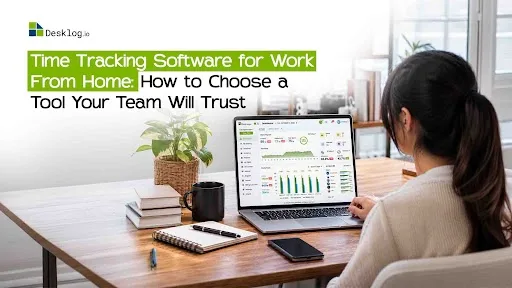
Time tracking software for work from home teams is a desktop or mobile application that records when people work, what they work on, and how actively they work, then turns that data into timesheets, project reports, and productivity insights. The best versions run in the background, so employees never have to start a timer.
It sits between two older categories. A plain timer app (start, stop, export) tells you hours but not context. A full employee monitoring suite can capture keystrokes and live video, which most remote teams neither need nor want. A good remote work tracker takes the automation of the second without the intrusion.
See How Your Remote Team Really Works
With Desklog, automatically track work hours, manage project time, and see active versus idle time from one dashboard. Less manual reporting, better visibility for home-based teams.
Track Your Remote TeamTime tracking vs employee monitoring: the difference that matters
Time tracking answers “how many hours went where”: attendance, project time, billable time and timesheets. Employee monitoring answers "What exactly is on the screen”: screenshots, keystrokes, sometimes webcam access. The two overlap, but they carry very different privacy obligations and very different effects on morale.
For most remote teams, the right line is this: track time, activity level and the applications used, and treat anything beyond that as optional and opt-in. That is the stance this guide follows, and it is the one that survives a conversation with HR, legal and the employees themselves.
Why remote teams need more than a time tracker
Home working is now a permanent feature of the labour market, not an emergency arrangement. In 2024–25, 34% of US wage and salary workers (51 million people) worked at home at least occasionally, and 28% had days they worked only at home, according to the US Bureau of Labor Statistics American Time Use Survey (released 24 September 2026). The same release found 57% of workers could vary their start and end times.
Flexible schedules break the assumptions a timer is built on. When one person works 7am to 3pm and another 11 am to 7pm, “online now” means nothing. What managers actually need to see is different:
- Real work hours, captured automatically, so timesheets and payroll match reality.
- Active versus idle time, so a long day of meetings is not misread as a long day of nothing.
- Which tools consumed the day, to find process friction, not to police browsing.
- Time per project and task, so client work can be billed and internal work can be budgeted.
- Workload balance, so overloaded people are visible before they burn out.
What good tracking software should capture for remote work?
A remote ready tool captures five layers of data and lets you switch each one on or off per team. The table shows what each layer answers and when it earns its place.
| Capability | Question it answers | When to turn it on |
|---|---|---|
| Automatic work hours and attendance | When did people start, stop, and break? | Always, this is the foundation for timesheets and payroll |
| Active, idle, and engaged time | Were the logged hours real work? | Always, but configure “engaged” states for calls and reading |
| App and website usage | Which tools and sites filled the day? | For teams with tool sprawl or measurable throughput (support, data entry) |
| Project and task time | What did each hour produce? | Any team that bills clients or budgets projects |
| Optional screenshots | What does proof of work look like for a client? | Only with consent, for billable client work, with blur and delete controls |
Automatic work hours and attendance
Manual timers fail for a simple reason: people forget. A background tracker starts when the computer is in use and stops when it is not, producing a daily record nobody had to remember to create. Automated time tracking also removes the end-of-week reconciliation where managers chase missing entries.
For distributed teams, attendance follows from the same data. Clock in and clock out, break lengths, and late starts are inferred from activity rather than typed in, which makes them consistent across time zones and schedules.
Active, idle, and engaged time
Idle detection flags periods with no keyboard or mouse input. On its own that is crude: a designer reviewing a video, a developer reading a spec, or a manager on a 45 minute call all look “idle” to a naive tracker. The better tools distinguish true inactivity from engaged inactivity, where the person is working but not typing.
This matters for fairness as much as accuracy. A tool that penalises people for thinking will be gamed with mouse jigglers within a month. Features such as engaged inactivity detection exist precisely to keep focused, quiet work from being counted against the person doing it.
App and website usage
Application level data shows how a day is composed: how much went to the IDE, the CRM, email, chat, and the browser. Used well, it exposes process problems, such as a support team spending two hours a day copying between two systems that should be integrated.
Used badly, it becomes a list of “unproductive” sites that nobody agreed to. Categorise applications with the team, keep personal sites out of reports, and review patterns at team level rather than person by person unless there is a specific performance concern.
Project and task time
Tying hours to projects turns tracking from a cost into a revenue tool. Agencies and consultancies can bill accurately, product teams can see which features actually consumed the sprint, and finance can compare planned cost with actual cost per project.
The key design question is friction. If employees must switch a task manually every time they change work, they will not. Look for tools that let people assign time to a task from a Kanban board or timesheet after the fact, in bulk.
Optional screenshots
Screenshots are the most contested feature in this category. Some clients require them as proof of work for billed hours, and some regulated teams use them for audit trails. Outside those cases, they add risk without adding insight.
If you need them, insist on three controls: employees can see every capture taken of them, captures can be blurred or deleted, and the feature can be switched off per person or project. Time tracking with screenshots should be a setting, never a default.
Tracking remote staff without surveillance
The fastest way to lose a remote team’s trust is to install tracking software quietly. The fastest way to keep it is to apply the data minimisation principle that already governs personal data in the EU: collect only what is “adequate, relevant and limited to what is necessary” for a stated purpose, as Article 5 of the GDPR puts it. Even outside Europe, that principle is the right design rule.
A practical policy fits on one page. Before rollout, decide and write down:
- Purpose: what the data is for (payroll accuracy, project billing, workload balance) and what it is not for.
- Scope: which layers are on, which are off, and whether tracking stops outside work hours.
- Access: who sees individual data versus team-level data, and how long it is kept.
- Visibility: employees can see their own data in full, at any time.
- Review: a quarterly check that the data is being used only for the stated purpose.
Employment and privacy rules differ by country and, in the US, by state. Have an employment lawyer review the policy before you switch anything on.
How to choose: a short checklist by team type
The right tool depends less on company size than on what decision the data must support. Start from that decision, then check the features it requires.
| Team | Decision supported | Must-have | Can skip |
|---|---|---|---|
| Founders (5–50 people) | Is the team’s week going to the right work? | Automatic hours, project time, simple dashboard, free or low-cost plan | Screenshots, geo-tracking |
| HR and People Ops | Are attendance, leave, and overtime records accurate and defensible? | Attendance, leave, shift management, audit-ready timesheets, privacy controls | App-level detail |
| Team and project managers | Who is overloaded, who is blocked, and is the sprint on track? | Task-level time, Kanban view, workload and capacity reports, engaged-time detection | Keystroke-level data |
| Agencies and consultancies | Did we bill every hour, and was the project profitable? | Billable vs non-billable, client invoicing, profit and loss per project, optional proof of work | Attendance policing |
| Freelancers | How much did this client really cost me? | Automatic hours, per-client reports, invoicing, offline tracking | Team features |
Two platform questions apply to everyone. The tool must run on every operating system your team uses, and it must keep tracking when the home internet drops and sync later. Offline time tracking sounds minor until a day of billable work vanishes.
A worked example: what unbilled hours cost an agency
The most common financial leak in remote client work is not slacking; it is honest work that never reaches an invoice. Here is an illustrative example (not a customer result): a 12 person agency billing $60 per hour, where manual timesheets under-record 30 weekly billable hours per person by 10%. That is 3 forgotten hours each, or 36 hours a week across the team.
At $60 per hour, that is $2,160 a week in uninvoiced work, roughly $108,000 over a 50-week year. Automatic project time capture will not recover all of it, since some of that time is correctly non-billable, but even half changes the margin on every project. See our guide to billable vs non billable hours.
A 30-minute setup plan for your first week
Rollout fails on communication, not on installation. Run these steps in order and the tool becomes part of the furniture within a week.
- Write the one-page policy (purpose, scope, access, visibility, review) and share it before installing anything.
- Pilot with volunteers from one team for five working days, with all optional layers off.
- Install on every OS in use and confirm offline capture and sync on one home connection.
- Define projects and tasks so time has somewhere to land; import from your task tool if possible.
- Categorise applications together: let the pilot team mark which tools count as work for their role.
- Review the first week at team level, share what you learned, and only then expand.
- Connect timesheets to payroll or invoicing once two consecutive weeks reconcile cleanly.
For a deeper walkthrough of the people side, see our guide on how to track employees working from home.
Where Desklog fits
Desklog is built for the middle ground this guide describes for work from home teams: automatic capture with context and optional surveillance features. Its remote employee time tracking software records work hours in the background, separates active from idle time, tracks app and URL usage, and ties hours to projects, tasks, and a Kanban board. It runs on Windows, macOS, and Linux, keeps tracking offline, and makes screenshots optional. Desklog offers a free plan and a 14 day trial with no credit card (see the pricing page). Like any tool in this category, it needs an installed agent on each device, so bring your own device policies need a conversation first.
Common mistakes to avoid
Most rollouts that fail do so for predictable reasons. Watch for these:
- Switching on every feature at once. Start with hours and project time; add layers only when a decision needs them.
- Reading idle time as laziness. Calls, reading, and thinking register as idle on crude tools; configure engaged states first.
- Reviewing individuals before reviewing the team. Process problems show up at team level, so look there before you track employee performance person by person.
- Hiding the data from employees. People accept tracking they can see; they resent tracking they cannot.
- Using the data for nothing. If timesheets do not feed payroll or billing, the team learns the tool is a theater.
Ready to Track Remote Work Fairly?
With Desklog, get accurate timesheets and clear visibility for your home based team. Start free, no credit card required.
Start Your Free TrialConclusion
The best time tracking software for a remote team is the one employees keep running without resentment. That means automatic capture, data they can see, and intrusive layers left off until a specific decision needs them. Start small with one team for a week, review the results together, and expand only when the data proves useful. Teams that roll out this way get accurate timesheets, fair project billing and a workplace where tracking feels like support, not surveillance. Used well, it also helps you track employee performance fairly for work from home teams, without turning tracking into surveillance.