Connect Your Workflow with Time Tracking Software
Track Time Accurately | Sync Projects Instantly | Gain Real-Time Insights
Bring all your tools together with Desklog integrations and create a unified workspace where project management and time tracking work as one. Desklog integrates effortlessly with platforms like Jira, ClickUp and AmazonS3, helping your team track time accurately, streamline workflows, and gain real-time visibility into work, without switching between tools.
Try free for 14 days | No credit card required
By signing up, you agree to our Terms and Conditions.

What Are Desklog Integrations?
Desklog integrations connect your existing tools with a centralized time tracking and productivity system, allowing teams to:

Jira Integration
Sync Jira projects and tasks with Desklog to track time effortlessly and gain real-time visibility into your development workflow.
View Integration
ClickUp Integration
Connect ClickUp with Desklog to combine structured task management with precise time tracking for smoother, more productive workflows.
View IntegrationAmazon S3 Integration
Store Desklog screenshots and activity data securely in Amazon S3, giving you full control, scalability, and reliable data access.
View IntegrationThis ensures accurate tracking, better reporting, and improved decision-making without disrupting your workflow.
Why Integrate Your Tools with Desklog Time Tracking Software?
Modern teams use multiple tools, and without integration, data gets scattered, and tracking becomes inconsistent. Desklog connects everything into one system, helping teams stay focused and organized.
Eliminate Manual Work and Save Time
Managing multiple tools often means duplicating data and switching tabs. Desklog automatically syncs projects and tasks, removing repetitive work. This reduces manual effort, keeps data accurate, and allows your team to focus more on productive tasks instead of system management.
Track Time Directly on Your Existing Tasks
Logging time in separate tools can interrupt workflow and reduce accuracy. Desklog lets users track time directly on tasks from tools like Jira or ClickUp. This keeps workflows uninterrupted while ensuring time is recorded exactly where the work happens, improving consistency and reliability.
Automatically Import Projects and Task Structures
Recreating projects across tools is time-consuming and error-prone. Desklog imports your existing project structures, including tasks and workflows. This keeps everything consistent across platforms while eliminating duplication, so your team can work within familiar systems without extra setup.
Stay Organized Without Extra Effort
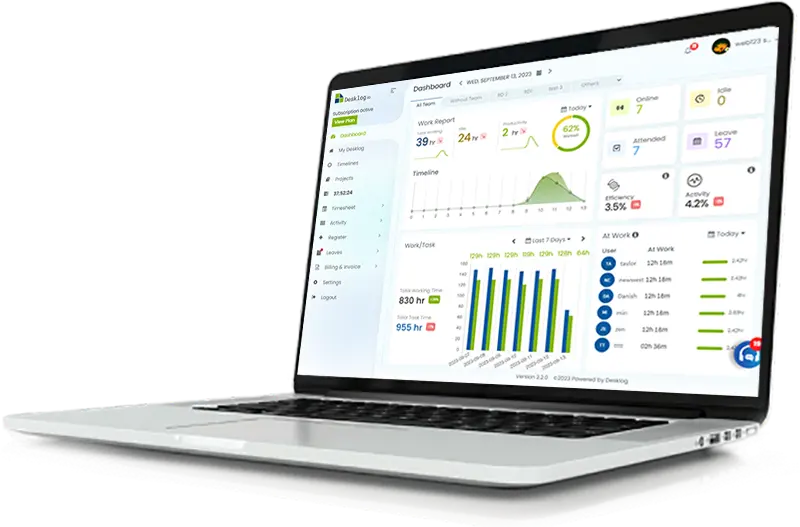
Disconnected tools often lead to scattered information and missed updates. Desklog brings all data into one centralized dashboard. This makes it easier to monitor progress, manage work, and stay aligned without constantly following up with your team.
Gain Real-Time Visibility into Work and Productivity
Limited visibility can impact planning and performance. Desklog provides real-time insights into tasks, timelines, and team activity. This helps identify bottlenecks, improve resource allocation, and make faster, data-driven decisions with greater confidence.
Desklog Integrations: Built for Real Workflows
Jira Integration with Desklog Time Tracking Software
Why Integrate Jira with Desklog?
Jira is powerful for Agile workflows, sprint planning, and issue tracking, but it lacks deep time intelligence. With Desklog, you don’t just track tasks, you understand how time is actually spent across projects, teams, and activities.
What Happens After JIra Integration?
Once connected:
- Jira projects, issues, and tasks are automatically synced into Desklog
- Users can track time directly on assigned Jira tasks
- Task updates in Jira reflect in Desklog in real time
- Managers gain visibility into workload, productivity, and timelines
This mirrors how advanced integrations import full task structures and allow time tracking without switching platforms
Step-by-Step: How to Integrate Jira with Desklog
Six steps from install to a live connection.
Go to Apps and select Explore More Apps, then search for Desklog and click Get It Now to install the application.
Open Desklog and navigate to Settings, then go to the Integrations section to access available integrations.
Select Jira Integration from the list and click “Configure, then choose Add New Account to begin setup.
Copy your Jira URL (up to .net), paste it into Desklog, and click Save to store your account details.
Go to View Added Account, click Authorize, and accept the required permissions to enable the connection.
Return to Desklog, open Jira Integration again, click Configure, and select Connect to complete the setup.
User Mapping (Critical Step)
- If user emails match in both systems, mapping happens automatically. If they don’t, download the Jira user list, add corresponding Desklog emails, and upload the CSV file.
- Once mapping is complete, users can track time on Jira tasks, and all activity will be accurately linked to their respective projects.
How Desklog Works with Jira After Integration
- When a task is created in Jira, it automatically appears in Desklog.
- When a task status is updated in Jira, the changes are instantly reflected in Desklog.
- When a task is started, it automatically moves to “In Progress” in Desklog.
- All time entries are directly linked to the actual task work, ensuring accurate tracking.
This creates a live connection between planning (Jira) and execution (Desklog).
ClickUp Integration with Desklog Time Tracking Software
Why Integrate ClickUp with Desklog?
ClickUp is built for productivity, but its native time tracking has limitations in reporting and analysis. Desklog enhances this by adding accurate time tracking, deeper activity insights, and advanced workforce analytics.
This combination helps teams move beyond basic tracking and gain meaningful visibility into how time and effort are actually spent.
What Happens After Clickup Integration?
Once connected:
- Spaces, lists, and tasks are imported into Desklog
- Users can track time across all ClickUp activities
- New tasks sync automatically
- Archived tasks stay aligned across both tools
This kind of structure sync ensures consistent tracking and reporting across platforms
Step-by-Step: How to Integrate ClickUp with Desklog
Six steps from settings to a synced workspace.
Pre-requisites — Before you begin:
- Admin access in Desklog and ClickUp
- Required permissions enabled
- Desklog Enterprise plan
- Active ClickUp workspace
Go to Settings in Desklog and navigate to the Integrations section to view available connections.
Find ClickUp Integration from the list and click “Integrate” to begin the setup process.
Inside ClickUp, go to Workspace Settings and open the ClickUp API section. Create a new app by entering the app name and redirect URL, then copy the Client ID and Client Secret. These credentials are required to establish a secure connection with Desklog.
Paste the Client ID and Client Secret into Desklog, then click “Save” followed by “Authorize” to initiate the connection.
Select the ClickUp workspace you want to connect and click “Connect Workspace” to grant access.
Click “Configure” and choose the specific workspace you want Desklog to sync with for tracking and reporting.
How Time Tracking Works with ClickUp After Setup Integration
Once integrated, Desklog enables:
- When time tracking is started from the dashboard, it allows quick and easy access to log work.
- When working on imported ClickUp tasks, time is tracked directly on those tasks for better accuracy.
- When switching between devices, tracking continues seamlessly across web, desktop, and mobile.
- When time data is recorded, it is automatically organized into centralized reports for clear insights.
This ensures you can track work across tasks without switching tools while maintaining accurate and unified time insights.
Amazon S3 With Desklog Time Tracking Integration for Secure Data Storage
Why Integrate Amazon S3 with Desklog?
Amazon S3 integration gives you full control over how and where your tracking data is stored. While Desklog captures detailed activity data, integrating with S3 ensures that sensitive information like screenshots and logs are securely stored within your own cloud infrastructure.
This is especially valuable for teams that require stronger data ownership, compliance control, and secure storage without relying on third-party systems.
What Happens After Amazon S3 Integration?
Once connected:
- Screenshots are automatically stored in your S3 bucket
- Activity logs remain securely accessible within your environment
- All tracking data is managed inside your AWS infrastructure
- Admins retain full control over storage, access, and data policies
This setup ensures your tracking data remains secure, centralized, and fully controlled without external dependencies.
Step-by-Step: How to Integrate Amazon S3 with Desklog
Four steps to point Desklog at your own bucket.
Go to Settings in Desklog and navigate to the Integrations section.
Click on Storage Integration and select “Integrate” to begin setup.
Provide your S3 credentials, including Bucket Name, Access Key ID, Secret Access Key, and Region.
Click “Save Integration” and verify the connection to complete the setup process.
How Desklog Works with Amazon S3 After Integration
Once integrated, Desklog enables:
- When screenshots are captured, they are automatically uploaded to your S3 bucket.
- When activity data is generated, it is securely stored and remains accessible to authorized admins.
- When data is stored, it stays entirely within your AWS environment without relying on third-party storage.
- All stored data is directly linked to tracked activities, ensuring secure and reliable record-keeping.
This creates a secure connection between activity tracking (Desklog) and data storage (Amazon S3).
Key Benefits of Desklog Integrations
Secure Storage
Maintain full ownership and control over your tracking data
Scalable Infrastructure
Easily handle large volumes of screenshots and logs
Enhanced Monitoring
Access detailed productivity data with secure storage support
Everything Connected. Nothing Missed.
When your tools work together, your data becomes more powerful.
- Accurate time tracking without manual effort
- Complete visibility into projects and productivity
- Better planning, estimation, and billing
- A simplified workflow across your entire team
Desklog Features
Frequently Asked Questions
How does Desklog integration improve productivity?
Can I track time directly in Jira using Desklog?
Does Desklog sync tasks automatically from ClickUp?
What are the benefits of integrating Desklog with project management tools?
- Track time accurately
- Sync tasks automatically
- Reduce manual work
- Gain real-time productivity insights
- Improve project planning and reporting
Is Desklog integration secure?
Can Desklog store data in my own cloud storage?
Do I need technical expertise to set up Desklog integrations?
How do Desklog integrations help with reporting and analytics?
What makes Desklog integrations different from other tools?
Is Desklog suitable for enterprise teams with multiple tools?
Start Connecting Your Tools Today!
Stop switching between apps. Start working smarter.