




Every payroll cycle, leave request, project deadline, and billing invoice depends on one important number: working days.
That’s why understanding how working days are calculated and how to track them accurately is essential for HR teams, payroll managers, project leads, and business owners.
Whether you’re calculating leave balances, planning project timelines, preparing payroll reports, or looking for reliable time tracking software to automate attendance and working day calculations, this guide will help you manage working days more accurately and efficiently.
📋 In this guide, you’ll learn:
- What Is a Working Days Calculator?
- What Is a Working Day?
- Working Days vs Calendar Days
- How Many Working Days in 2026?
- How to Calculate Working Days (3 Methods)
- Comparing the 3 Most Common Methods to Calculate Working Days
- How Working Days Affect Payroll Accuracy
- Working Days by Industry
- How Desklog Automates Working Days Tracking
What Is a Working Days Calculator?
A working days calculator helps you count the number of business days between two dates, typically excluding weekends and public holidays.
Inputs you need:
- Start date
- End date
- Weekend exclusions (Saturday/Sunday or custom)
- Public holidays (optional but important)
How to Use a Working Days Calculator (Step-by-Step)
- Enter your start and end dates
- Choose whether to exclude weekends
- Add public holidays if needed
- Instantly get your total working days
This is the fastest way to calculate working days between two dates without errors.
But here’s the real upgrade: instead of calculating every time, you can track working days automatically using time tracking software.
Calculate Working Days Instantly
Stop counting workdays manually and get accurate results in seconds with an automated working days calculator.
Try the Working Days Calculator →What Is a Working Day? Definition, Rules & Examples
A working day is any day an employee is scheduled or expected to work based on their employment terms, company policy, or industry norms.
For most standard office environments, this typically means:
- Monday to Friday
- Excluding public holidays
However, this can vary based on:
- Industry
- Country
- Employment contract
- Shift patterns
Working Days vs Calendar Days: Key Differences Explained
Understanding the difference between working days and calendar days is important because businesses often confuse the two when calculating payroll, leave and project timelines.
Even small working day calculation mistakes can lead to payroll discrepancies, incorrect leave balances, and unrealistic deadlines.
| Working Days | Calendar Days |
|---|---|
| Includes only scheduled workdays | Includes every day in the period |
| Usually excludes weekends | Includes weekends |
| Excludes public holidays | Includes public holidays |
| Commonly used for payroll, attendance, and leave | Commonly used for contracts and billing periods |
| Represents actual available work time | Represents total elapsed time |
Example
- 14 calendar days ≈ 10 working days
- A 10-day leave request typically equals 2 full work weeks
Because working days represent actual productive time, using calendar days instead can create planning and payroll errors, especially when weekends, holidays, or employee leave are involved.
How Many Working Days Are There in 2026?
In 2026, there are 261 working days based on a standard Monday–Friday workweek, excluding weekends.
This is the baseline most businesses use before factoring in public holidays.
However, once national and regional holidays are included, the actual number of working days in a year typically falls between 240 and 252 days, depending on the country and local holiday calendar.
This variation is important for payroll, leave planning and project timelines, especially for global teams.
Total Working Days in 2026
- Standard (Mon–Fri, no holidays): 261 days
- After holidays: ~240–253 days (varies by country)
Total Working Days in 2026: Monthly Breakdown
Here’s an estimated breakdown of working days per month in 2026 based on a standard Monday–Friday workweek, excluding weekends.
Actual totals may vary slightly depending on public holidays and company-specific schedules.
| Month | Working Days |
|---|---|
| January | 23 |
| February | 20 |
| March | 21 |
| April | 22 |
| May | 21 |
| June | 21 |
| July | 23 |
| August | 21 |
| September | 22 |
| October | 23 |
| November | 19 |
| December | 23 |
Average: 21–22 working days per month
Working Days by Country in 2026: Global Comparison
Here’s an approximate estimate of annual working days in 2026 across major countries after accounting for weekends and common public holidays.
The exact number can vary based on regional holiday calendars and local employment policies.
| Country | Working Days (After Holidays) |
|---|---|
| India | 245–250 |
| USA | 249–251 |
| UK | 248–250 |
| Australia | 247–249 |
| UAE | 246–248 |
| Canada | 248–250 |
How to Calculate Working Days (3 Methods)
Calculating working days may seem straightforward, but the method you choose can significantly impact accuracy, especially as your team grows.
While manual counting might work for quick estimates, larger teams, multiple locations, and varying holiday calendars require more reliable approaches.
Below are three practical methods, from basic to fully automated.
Method 1 — Manual Calculation
This is the most basic approach and is often used for quick, one-off calculations.
It works well for short date ranges but becomes difficult to manage as complexity increases.
Steps:
- Count total calendar days
- Subtract weekends
- Subtract public holidays
Example: March 2025
- Total days: 31
- Weekends: 10
- Working days: 21
Method 2 — Excel Formula
For more accuracy and efficiency, Excel provides built-in functions that automate working day calculations.
This is a popular method for HR and payroll teams handling recurring calculations.
Use the NETWORKDAYS function:
=NETWORKDAYS(start_date, end_date, holidays)
Example:
=NETWORKDAYS(A1, B1, C1:C10)
What it does:
- Automatically excludes weekends
- Removes listed holidays
Common mistakes:
- Forgetting to include a holiday list
- Using incorrect date formats
- Not adjusting for regional holiday calendars
Method 3 — Automated Tracking (Best Option)
When dealing with multiple employees, locations, and changing schedules, manual tracking and spreadsheet methods quickly become inefficient.
This is where automated time tracking tools provide the most value.
Best for:
- Growing teams
- Remote or global workforces
- Businesses with frequent leave and attendance changes
Automated tools solve this by:
- Recording actual workdays in real time
- Tracking attendance automatically
- Generating working days reports instantly
Instead of calculating, the system tracks everything for you, eliminating errors and saving time.
Comparing the 3 Most Common Methods to Calculate Working Days
| Feature | Manual | Excel | Automated Software |
|---|---|---|---|
| Excludes weekends | ✔ | ✔ | ✔ |
| Excludes holidays | ✔ (manual) | ✔ | ✔ |
| Real-time tracking | ✖ | ✖ | ✔ |
| Suitable for large teams | ✖ | Limited | ✔ |
| Attendance integration | ✖ | ✖ | ✔ |
| Payroll-ready reports | ✖ | Limited | ✔ |
| Error risk | High | Medium | Low |
How Working Days Affect Payroll Accuracy
Accurate working day calculations are essential for error-free payroll. Salaries, leave deductions, overtime, and attendance records all depend on the correct number of working days.
Even small mistakes can lead to payroll discrepancies, employee disputes and compliance issues.
How Working Days Affect Payroll
Working days directly impact:
- Daily wage employees: Paid based on days worked
- Leave deductions: Calculated using missed working days
- Overtime & shift pay: Based on schedules and attendance
Common Payroll Errors
Incorrect working day calculations often cause:
- Wrong leave deductions
- Missing holiday adjustments
- Duplicate or missed payments
- Inconsistent payroll processing across teams
These issues become more common when payroll is managed manually or through spreadsheets.
How to Avoid Payroll Mistakes
To improve payroll accuracy:
- Standardize working day rules
- Use a consistent holiday calendar
- Automate attendance tracking
- Generate payroll-ready reports automatically
Automated tracking systems reduce manual errors by recording attendance and working days in real time.
Working Days by Industry
Working days vary significantly across industries because different businesses follow different schedules, shift structures, and operational requirements.
This makes accurate tracking important for payroll, attendance and project planning.
IT & Software Teams
Most IT and software companies follow a standard Monday–Friday schedule. Working days are commonly used for:
- Sprint planning
- Productivity tracking
- Resource allocation
- Project deadline management
For example, a 2-week sprint typically means 10 working days, not 14 calendar days.
Retail & Shift-Based Teams
Retail, hospitality, healthcare, and logistics teams often work:
- Weekends
- Rotational shifts
- Non-standard schedules
Because of this, businesses need custom working day definitions based on actual shift schedules and attendance patterns.
Remote & Global Teams
Remote teams often work across:
- Multiple time zones
- Different public holiday calendars
- Different weekend structures
This can create inconsistencies in payroll, attendance, and project planning.
For distributed teams, standardizing working day tracking is essential to maintain accuracy across locations.
How Desklog Automates Working Days Tracking
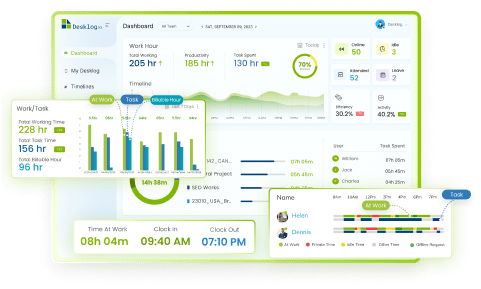
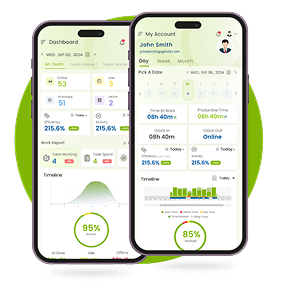
Desklog is an employee time tracking and productivity tool designed to help businesses track attendance, track work hours, and manage projects more accurately.
Instead of manually calculating working days through spreadsheets or calendars, Desklog automates the entire process.
For HR teams, payroll managers, and project leads, this means fewer calculation errors, better visibility into employee attendance, and faster reporting.
How Desklog Helps
Desklog simplifies working days management by:
- Automatically recording employee attendance
- Tracking actual working days in real time
- Generating monthly and team-wide reports
- Integrating leave and absence data
- Supporting project and task-level time tracking
What Gets Automated
With Desklog, businesses can automatically track:
- Working days per employee
- Attendance and absence reports
- Leave-adjusted working days
- Project time allocation
- Team productivity and billable hours
By centralizing attendance, leave, and project tracking in one system, Desklog helps teams reduce manual work, improve payroll accuracy and manage working days more efficiently.
Automate Working Days Tracking with Desklog
Track attendance, calculate working days automatically, and generate payroll-ready reports from one centralized time tracking platform.
Start Tracking Working Days with Desklog →Conclusion
Working days play a critical role in payroll, leave management, attendance tracking, and project planning. In this guide, we covered:
- What working days are and how they differ from calendar days
- How to calculate working days manually, in Excel, and automatically
- Working days estimates for 2026
- Common payroll issues caused by inaccurate calculations
- How different industries manage working days differently
- How automated tools simplify tracking and reporting
While manual methods and spreadsheets can work temporarily, they often create errors as teams grow.
Automated tools like Desklog help businesses track working days, attendance, leave, and project time more accurately and efficiently in one place.
FAQ
1How many working days are there in 2026?
2How do I calculate working days between two dates?
=NETWORKDAYS(start_date, end_date, holidays) formula, or use automated time tracking software for real-time accuracy.
3What is the difference between working days and calendar days?
4How many working days are in a month in 2026?
5How do I calculate working days in Excel?
=NETWORKDAYS(start_date, end_date, holidays). This automatically excludes weekends and any holidays you list. Common mistakes include forgetting to add a holiday list or using incorrect date formats.