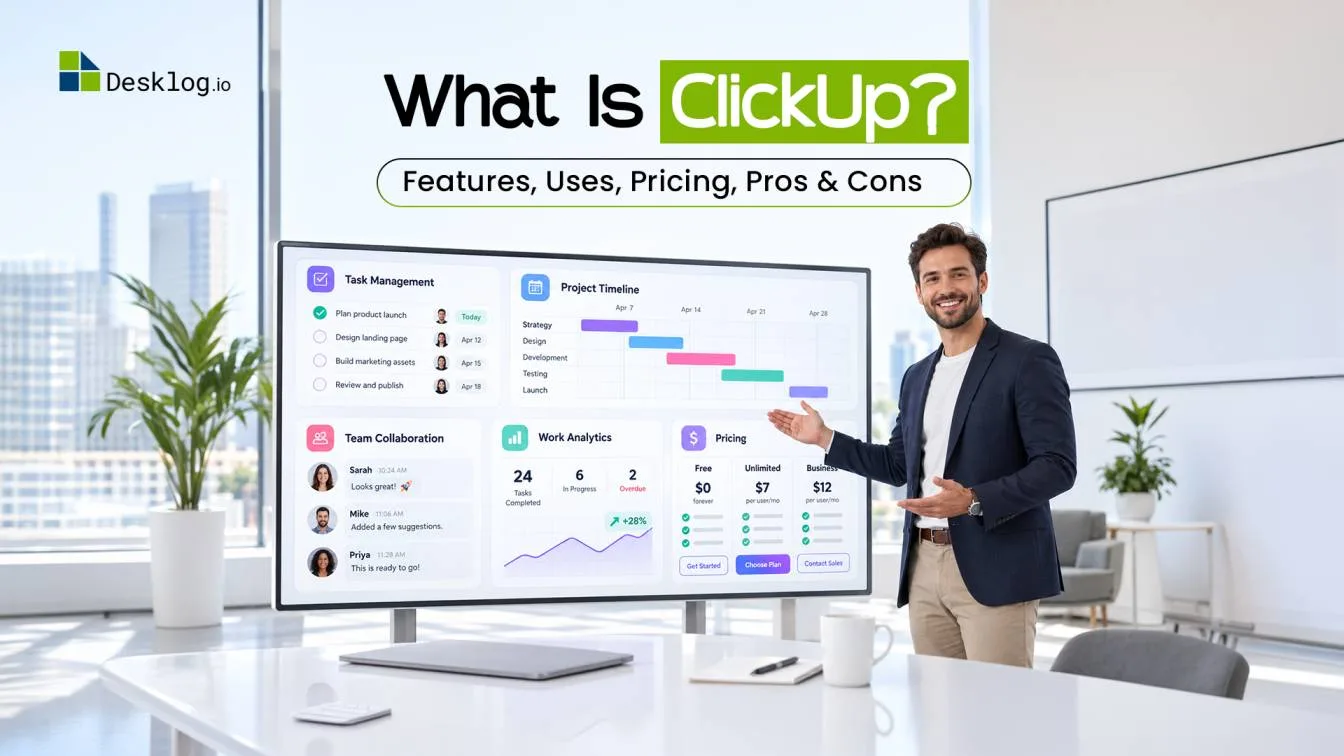

ClickUp is a work management and productivity platform that brings project management, task management, collaboration, documentation, time tracking, reporting, and automation into one workspace. It is designed to help individuals and teams organize their work, manage projects, and track progress.
As one of the widely used productivity software solutions, ClickUp combines multiple tools and capabilities within a single workspace. But what exactly is ClickUp used for, how does it work, and what features does it offer? Let's take a closer look.
- What Is ClickUp?
- How Does ClickUp Work?
- What Is ClickUp Used For?
- What Are the Key Features of ClickUp?
- ClickUp Pricing, Pros, Cons, and the Best Alternatives
What Is ClickUp?
ClickUp is a cloud-based work management and project management platform that helps individuals and teams plan, organize, manage, and track their work from a centralized workspace.
It combines several functions that teams may otherwise handle through separate applications, including task management, project planning, team collaboration, document management, goal tracking, time tracking, dashboards, automation, and AI-powered tools.
One of ClickUp's defining characteristics is its flexibility. Teams can customize task statuses, fields, views, dashboards, workflows, and automations according to their requirements.
For example, a marketing team can use ClickUp to manage content calendars, campaigns, and creative projects, while a software development team can use it to manage sprints, bugs, feature requests, and product roadmaps.
The platform is also designed to reduce the need to switch between multiple applications. Tasks, documents, conversations, goals, and project information can be connected within the same workspace.
How Does ClickUp Work?
ClickUp organizes work using a hierarchical structure that moves from the overall workspace down to individual pieces of work.
The basic structure is:
Workspace → Spaces → Folders → Lists → Tasks → Subtasks
ClickUp Workspace
A Workspace is the highest level of organization in ClickUp. It represents the overall environment where an organization or individual manages work. For a company, the Workspace can contain different departments, projects, teams, and workflows.
ClickUp Spaces
Spaces divide a Workspace into major departments, teams, or areas of work. For example, an organization might create Spaces for Marketing, Sales, Product, Engineering, Human Resources, and Customer Support. Each Space can have its own workflows, settings, statuses, and views.
ClickUp Folders
Folders provide another organizational level within a Space. They can be used to group related projects or workflows. For example, a Marketing Space could have separate Folders for Content Marketing, Social Media, Product Marketing, and Events. Folders are particularly useful when a team manages multiple related projects.
ClickUp Lists
Lists contain related tasks and are generally used to organize a project, workflow, or category of work. For example, a Content Marketing Folder could contain Lists such as Blog Articles, Ebooks, Case Studies, and Website Content.
ClickUp Tasks
Tasks represent individual pieces of work. A task can include a description, assignee, due date, priority, comments, attachments, custom fields, dependencies, and other information. For example, the task "Write a blog article" can be assigned to a writer with a deadline and additional instructions.
ClickUp Subtasks
Subtasks break larger tasks into smaller actionable activities. For example, the task "Publish a blog article" could include subtasks such as research keywords, prepare outline, write draft, edit content, add internal links, and publish article. This structure allows teams to manage both high-level projects and detailed work within the same platform.
Connect Desklog with ClickUp
Get better visibility into time, tasks, and team productivity, all in one workflow.
Explore the Desklog–ClickUp Integration Strat Free TrialWhat Is ClickUp Used For?
ClickUp can be used for a wide range of business and productivity activities. Its applications extend beyond traditional project management.
Project Management
Project management is one of ClickUp's primary use cases. Teams can create projects, divide them into tasks, assign responsibilities, establish deadlines, create dependencies, and monitor progress. Project managers can also use milestones, timelines, Gantt charts, dashboards, and workload information to understand project status. Dependencies can show how one task affects another. For example, a development task may depend on a design task being completed first.
Task Management
ClickUp provides tools for creating, assigning, prioritizing, scheduling, and organizing tasks. Users can add due dates, priorities, assignees, subtasks, checklists, dependencies, custom fields, attachments, comments, and recurring schedules. This allows teams to break larger projects into smaller pieces of work and track them individually.
Team Collaboration
ClickUp includes several tools for keeping communication connected to work. Team members can use comments and mentions within tasks, while Docs, Chat, and Whiteboards provide additional spaces for collaboration. For example, a team can discuss a requirement within a task rather than having the discussion in a separate communication channel with no direct connection to the work.
Workflow Management
Teams can customize ClickUp around their existing workflows. Custom statuses, fields, dependencies, and automations can be used to define how work moves from one stage to another. For example, a content team could create the workflow: Idea → Research → Writing → Editing → Approval → Published. Each task can move through these stages as the work progresses.
Software Development
Software development teams can use ClickUp to manage product roadmaps, features, bugs, development tasks, sprints, backlogs, dependencies, and release planning. Development workflows can be customized using different statuses, views, task types, and relationships.
Marketing and Content Management
Marketing teams can use ClickUp to plan campaigns, manage content calendars, coordinate creative work, and track approvals. A campaign could contain tasks for content creation, SEO, social media, email marketing, graphic design, advertising, approvals, and publishing. This allows marketing teams to track campaign activities from planning through completion.
Document and Knowledge Management
ClickUp Docs can be used to create and organize internal documentation, project information, meeting notes, knowledge bases, standard operating procedures, and other resources. Keeping documentation alongside tasks can make it easier for team members to find the information needed to complete their work.
Goal Management
ClickUp Goals allow teams to define objectives and track measurable progress. For example, a marketing team can create a quarterly organic traffic goal and connect related tasks and initiatives to it. This provides a connection between individual activities and larger business objectives.
Client and Agency Management
Agencies can use ClickUp to manage work across multiple clients and projects. Different Spaces, Folders, Lists, custom fields, and workflows can be used to separate client work while keeping project information organized.
Employee Onboarding
ClickUp can also be used to create structured employee onboarding workflows. An onboarding project may include tasks for account creation, documentation, equipment setup, training, policy reviews, and team introductions. Tasks can be assigned to different departments and scheduled according to the employee's joining date.
What Are the Key Features of ClickUp?
ClickUp offers a wide range of features for managing tasks, projects, collaboration, documentation, time, and team workflows. Its main features include:
Task and Project Management
ClickUp lets users create tasks and subtasks, assign responsibilities, set deadlines, establish priorities, and manage dependencies. Tasks can also include checklists, attachments, comments, custom fields, and recurring schedules, making it easier to organize complex projects.
Multiple Project Views
Teams can view the same work in different formats based on their workflow. ClickUp offers List, Board, Calendar, Gantt, Timeline, Table, and Workload views, allowing users to manage tasks, schedules, dependencies, and team capacity from different perspectives.
Custom Fields and Statuses
ClickUp allows teams to customize tasks with fields such as client name, budget, department, priority, and project type. Custom statuses can also reflect specific workflows, such as Backlog → In Progress → Review → Complete.
Team Collaboration
ClickUp provides built-in collaboration features such as comments, mentions, Chat, and Whiteboards. These tools allow teams to communicate, share ideas, and discuss work without separating conversations from their projects and tasks.
ClickUp Docs
ClickUp Docs provides a centralized space for creating and organizing information. Teams can use it for knowledge bases, meeting notes, project documentation, internal guidelines, SOPs, and content planning, while connecting documents with relevant tasks and projects.
Dashboards and Reporting
ClickUp Dashboards provide visual overviews of project and team information. Users can track task progress, project status, workload, time, goals, and other metrics to understand how work is progressing.
Goals and Objectives
ClickUp Goals helps teams define objectives and track measurable results. Teams can connect goals with relevant tasks and activities, making it easier to monitor progress toward broader business objectives.
Automations
ClickUp Automations can handle repetitive workflow actions such as assigning tasks, changing statuses, updating fields, sending notifications, and moving work between stages. This helps reduce manual updates across recurring workflows.
Time Tracking
ClickUp includes built-in time tracking for recording time spent on tasks and projects. Users can track time, add manual entries, set estimates, and review recorded hours for project planning, workload management, and billing.
ClickUp AI
ClickUp AI provides AI-powered features for tasks such as summarizing information, drafting content, generating task-related text, answering questions, creating updates, and finding information within the workspace.
Integrations
ClickUp integrates with various external applications across communication, cloud storage, development, CRM, time tracking, automation, and productivity. These integrations help teams connect ClickUp with the other tools they already use.
Who Can Use ClickUp?
ClickUp is designed for individuals, teams, and businesses that need a centralized platform to organize tasks, manage projects, collaborate, and track work. Its flexible features make it suitable for different team sizes, industries, and workflows.
Individuals and Freelancers
Individuals and freelancers can use ClickUp to organize personal tasks, manage client projects, set deadlines, track time, and maintain project documentation in one place.
Small Businesses and Startups
Small businesses can use ClickUp to coordinate daily tasks, manage projects, collaborate with team members, and build structured workflows without relying on multiple separate tools.
Large Teams and Enterprises
Larger organizations can use ClickUp to manage multiple projects, coordinate teams, standardize workflows, track goals, and monitor project progress across departments.
Different Business Teams
ClickUp can support teams across marketing, software development, sales, HR, operations, finance, and project management.
ClickUp Pricing
ClickUp offers multiple pricing plans designed for individuals, small teams, and larger organizations. Its pricing follows a feature-based model, with more advanced project management, reporting, automation, and administration capabilities available in higher-tier plans.
| Plan | Price (per user/month) | Designed For | Key Features |
|---|---|---|---|
| Free Forever | $0 | Individuals and small teams getting started | 60 MB storage, unlimited tasks and free-plan members, Kanban Boards and Calendar View, Collaborative Docs and basic custom fields |
| Unlimited | $7 (billed annually) | Teams managing their work in ClickUp | Unlimited storage, folders, Spaces, and integrations, Gantt Charts, custom fields, and forms, native time tracking and resource management, Goals, Portfolios, and AI capabilities |
| Business | $12 (billed annually) | Cross-functional teams managing complex projects | Google SSO and unlimited message history, Mind Maps, Dashboards, and Timeline Views, sprint points and advanced reporting, workload management and advanced automations |
| Enterprise | Custom pricing | Large organizations requiring advanced governance and scalability | White labeling and advanced permissions, custom roles and workload capacity, Enterprise API, SSO, and SCIM provisioning, data residency options and dedicated support |
Pricing Verdict
ClickUp offers competitive pricing considering the number of project management, collaboration, time tracking, automation, and reporting features included. The Unlimited and Business plans provide a broader set of capabilities for growing teams, while Enterprise is better suited to organizations with advanced security, governance, and administrative requirements.
However, the platform's extensive functionality can also increase complexity as teams move to higher-tier plans. Businesses should compare the available features with their actual workflow requirements before choosing a plan.
Is ClickUp's Free Plan Enough?
The Free Forever plan may be sufficient for individuals and small teams with basic task and project management requirements.
Teams that need advanced time tracking, reporting, automation, larger limits, or additional administrative capabilities may need a paid plan.
Because pricing and feature availability can change, it is best to verify current pricing on ClickUp's official pricing page before making a purchasing decision.
What Are the Pros and Cons of ClickUp?
ClickUp's extensive feature set can be both an advantage and a limitation depending on the team's needs.
- Wide Range of Features: ClickUp combines project management, task management, documentation, collaboration, time tracking, goals, dashboards, automation, and AI in one platform.
- Customizable Workflows: Teams can customize statuses, fields, views, dashboards, and automations around their existing processes.
- Multiple Work Views: Users can switch between different views depending on how they need to understand their work.
- Built-in Collaboration: Comments, Docs, Chat, and Whiteboards allow teams to keep communication and project information connected.
- Automation and AI: Automation can reduce repetitive manual actions, while AI features can assist with content, summaries, information retrieval, and other work.
- Learning Curve: The large number of features can take time for new users to understand.
- Feature Overload: Teams that only need basic task management may find the platform more extensive than necessary.
- Initial Setup and Configuration: Creating a highly customized workspace requires planning and configuration.
- Plan-Based Feature Limits: Certain advanced capabilities, limits, and administrative features depend on the selected plan.
What Are the Best ClickUp Alternatives?
The best ClickUp alternative depends on what a team needs to manage and which features are most important. Some platforms focus on project management, while others specialize in productivity, time tracking, collaboration, or software development.
Desklog
Desklog is a dedicated time tracking and productivity platform designed for teams that want deeper visibility into work hours and productivity. It offers features such as automated time tracking, activity insights, timesheets, project time tracking, productivity reports, and workforce analytics.
Unlike ClickUp, which combines project management with several work management functions, Desklog focuses primarily on automated time tracking and productivity insights. This makes it a suitable option for teams that want to understand how time is spent and measure productivity without adopting a broad project management platform.
Asana
Asana focuses on project and task management, helping teams assign work, set deadlines, organize projects, manage dependencies, and track progress. It is a strong option for teams looking for structured project planning and collaboration.
Monday.com
Monday.com provides customizable work management features for projects, business processes, and team operations. Its visual boards and flexible workflows allow teams to adapt the platform to different use cases.
Trello
Trello uses boards, lists, and cards to organize work visually. Its straightforward Kanban-style approach makes it suitable for individuals and teams that want simple task management without extensive configuration.
Jira
Jira is widely used by software development teams to manage issues, backlogs, sprints, releases, and Agile workflows. It is particularly suited to development teams that need specialized project and issue-tracking capabilities.
Notion
Notion combines documentation, databases, notes, and task management in a flexible workspace. It can be a good ClickUp alternative for teams that prioritize knowledge management and customizable workspaces alongside basic project organization.
Is ClickUp Worth It?
Whether ClickUp is the right choice depends on a team's workflows, size, budget, and feature requirements.
When ClickUp Makes Sense
ClickUp can make sense when a team wants multiple work management functions within one platform. It can be particularly useful when teams need project management, task management, collaboration, documentation, multiple project views, automation, goals, dashboards, and time tracking.
When You May Need a Simpler Tool
If your team only needs basic task management, ClickUp's extensive feature set may be more than necessary. A simpler platform may be easier to configure and learn when advanced project management features are not required.
When You May Need a Specialized Tool
If your primary requirement is a specific function such as software development, documentation, time tracking, or productivity analytics, a specialized platform may provide deeper capabilities in that particular area. The decision should therefore be based on the actual workflow your team needs to manage rather than the number of features a platform offers.
Final Verdict
ClickUp is a comprehensive work management platform that combines project management, task management, collaboration, documentation, time tracking, automation, reporting, and AI capabilities.
Its flexibility makes it suitable for a wide range of teams, although its extensive feature set can also create a learning curve. The right choice ultimately depends on the complexity of your workflows and the features your team actually needs.