The Desklog Agent App runs in the background and tracks work activity based on your organization’s settings. If you need to switch accounts, stop tracking, or sign in with different credentials, you can log out of the Agent App at any time.
Logging Out of the Desklog Agent App
Step 1: Locate the Desklog Agent App
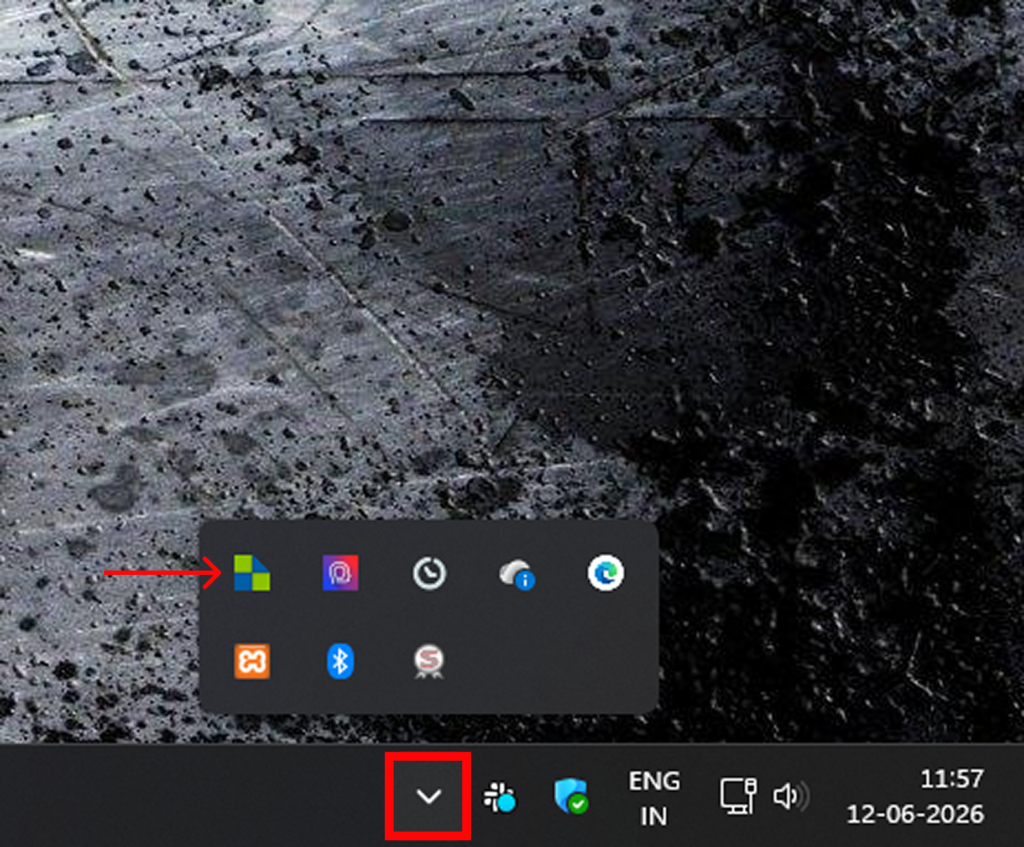
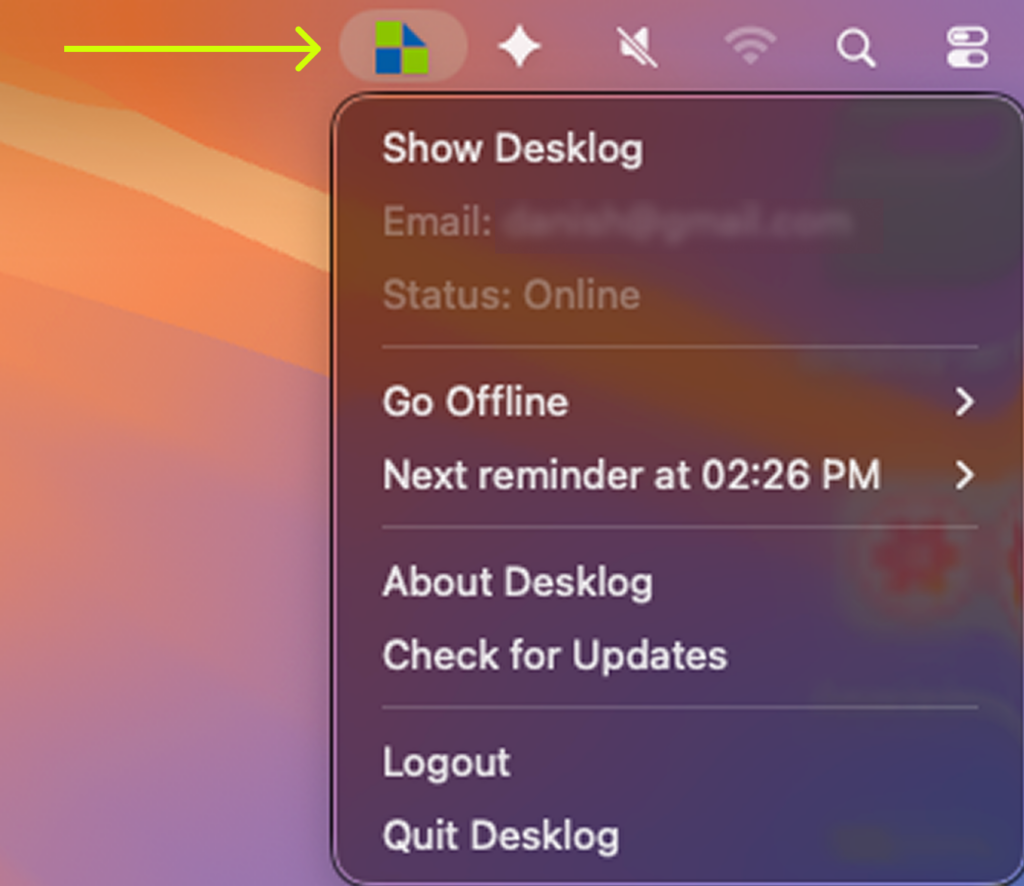
The Desklog Agent App is usually minimized to your system tray or menu bar after login.
- Windows: Click the Desklog icon in the system tray located in the bottom-right corner of the taskbar.
- macOS: Click the Desklog icon in the menu bar at the top of your screen.
- Linux: Locate and click the Desklog icon from the system tray or notification area, depending on your desktop environment.
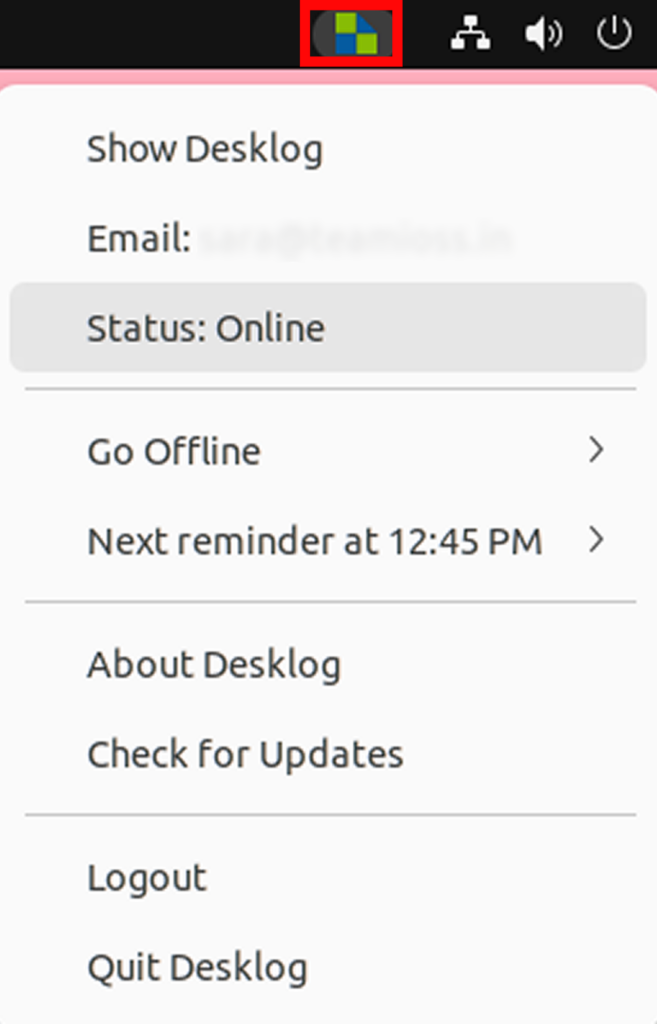
Step 2: Click the Desklog Agent App icon to open the dropdown menu and click Logout.
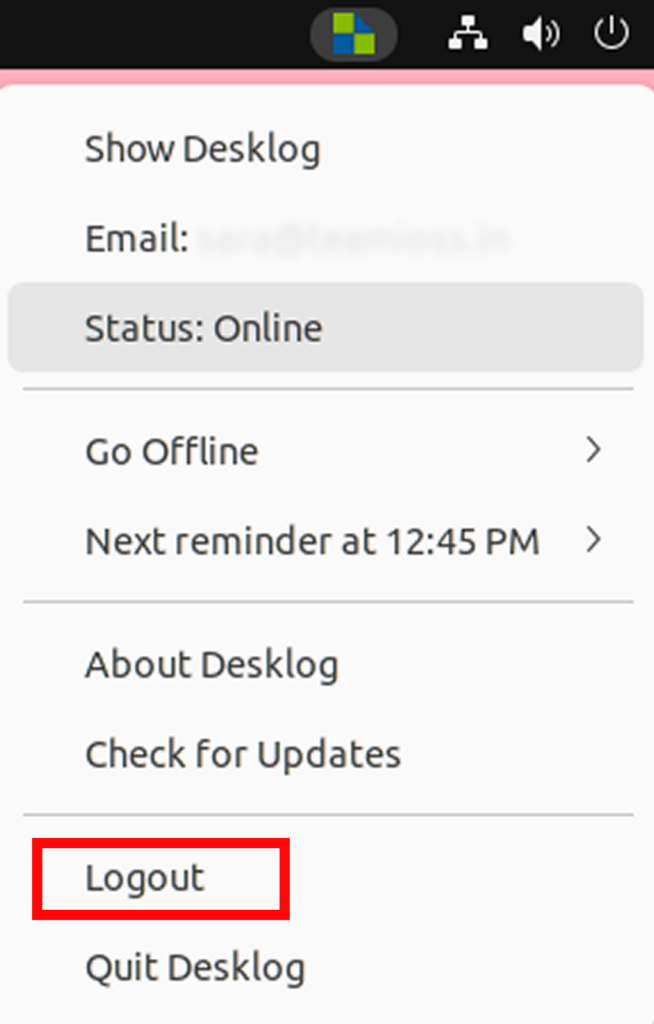
Once selected:
- Your current session will end.
- Time tracking and activity tracking will stop.
- The Agent App will return to the login screen.
- You will be successfully logged out of your Desklog account on that device.
To log in again:
- Open the Desklog Agent App from Applications.
- The login screen will appear automatically.
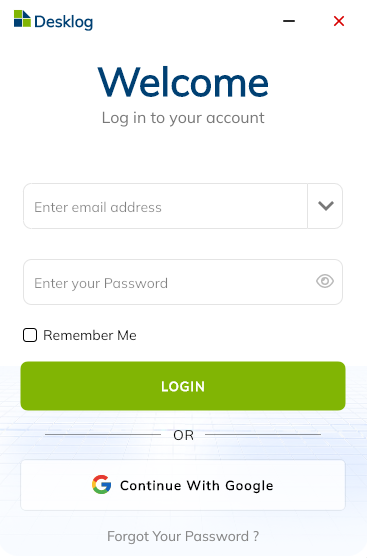
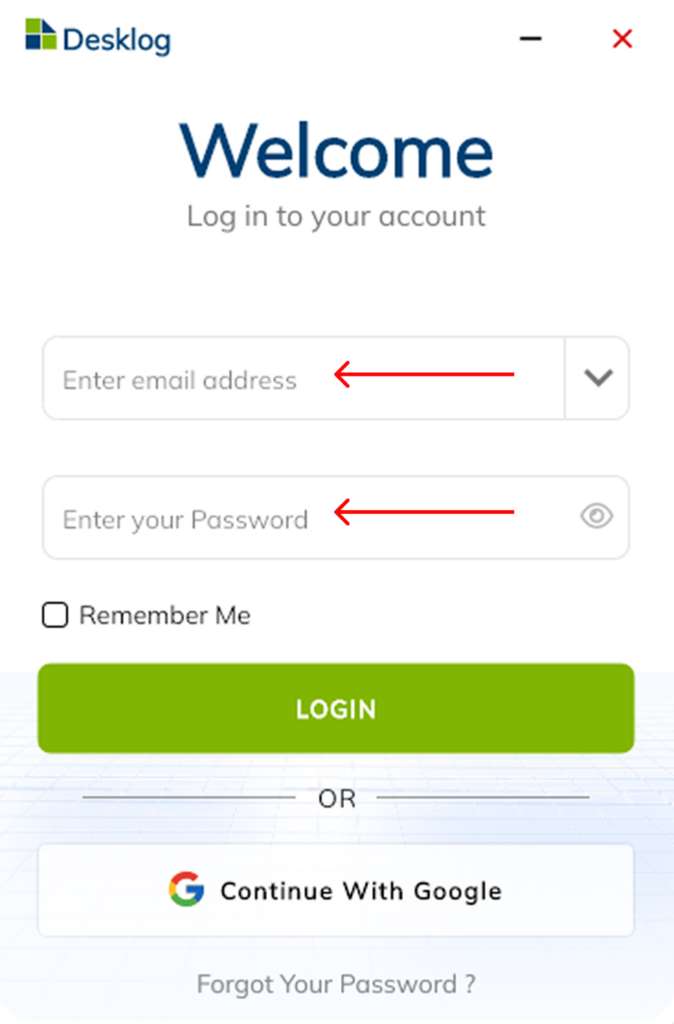
- Enter the email address and password associated with your Desklog account.
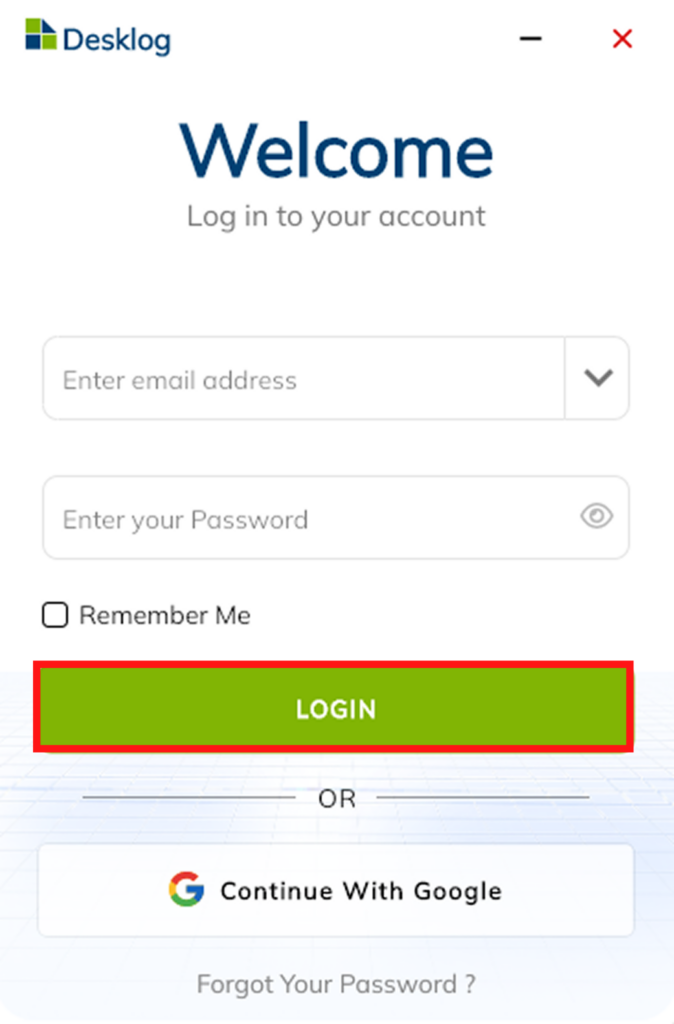
- Click Login to start a new session.
After successful authentication, the Agent App will resume tracking based on your organization’s settings and permissions.