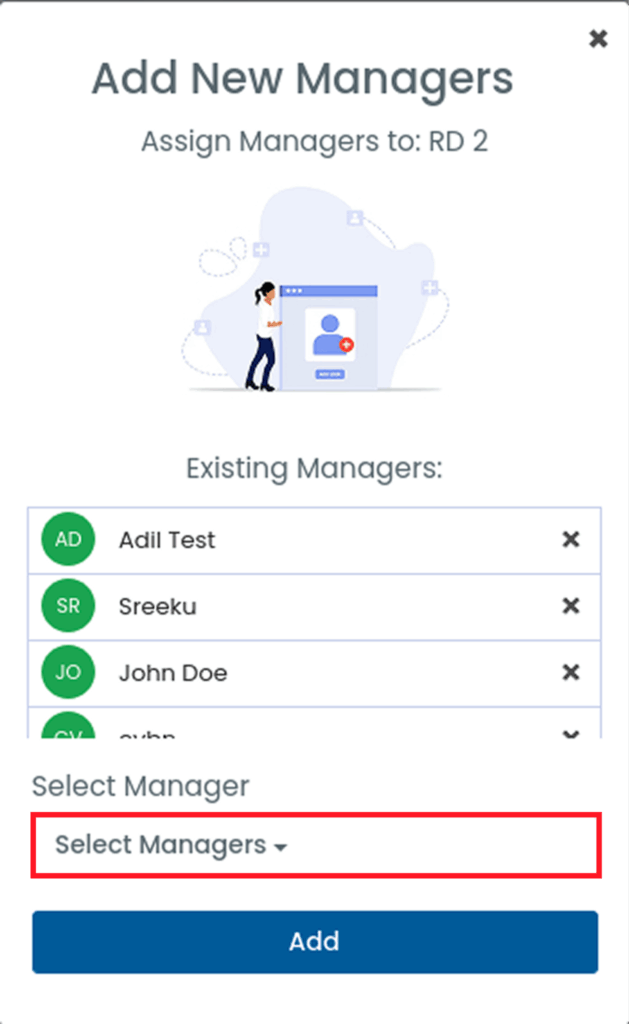
Desklog allows administrators to assign managers to teams in two simple ways. You can either assign teams from the manager’s profile or directly add managers from the team settings.
Method 1: Assign Teams from the Manager’s Profile
Use this method when you want to assign one manager to multiple teams or users at once.
Steps
- From the Admin left panel, click Register and select User.
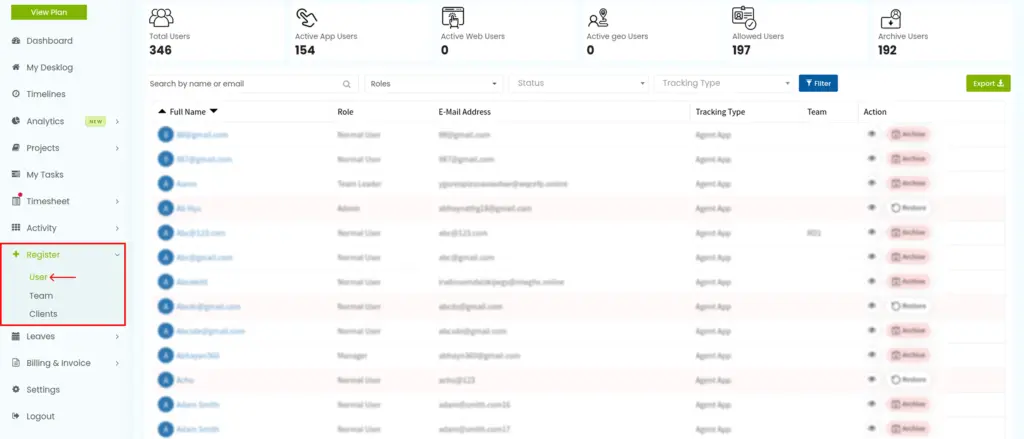
- Click on the Roles drop down and select Manager. After selecting Manager click on the Filter button.
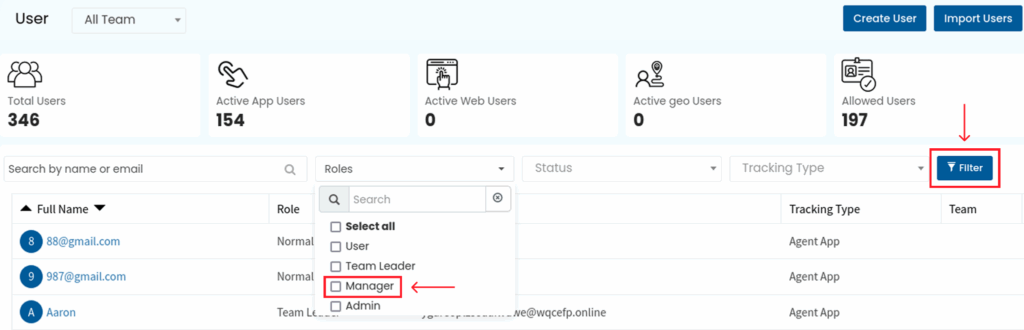
- From the filtered list, click on the manager you want to assign.
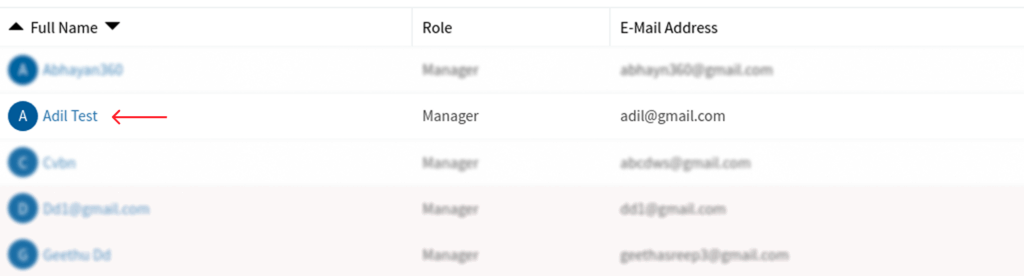
- In the user profile window, go to Account and select Administration.
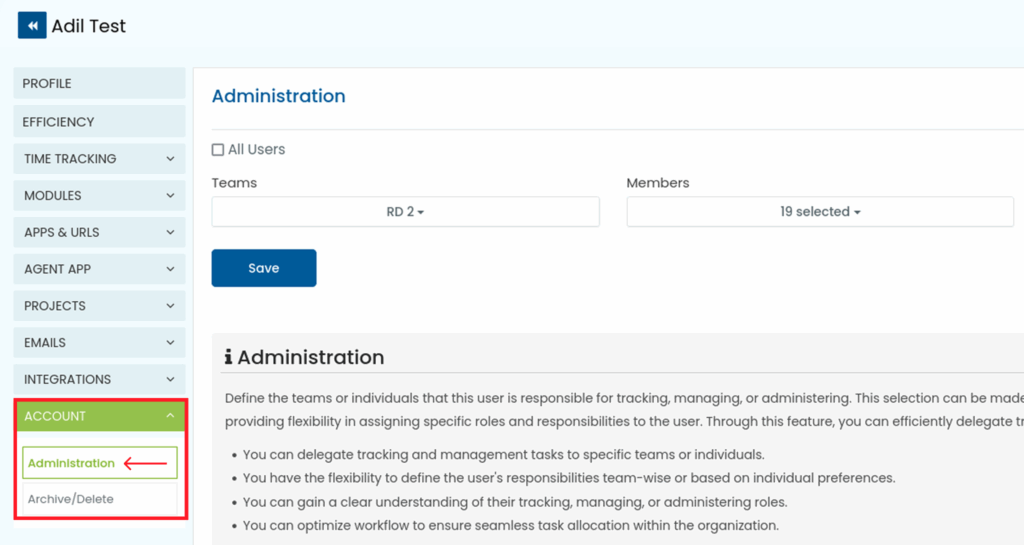
- In the Administration section:
- Select the teams and individual members you want this manager to oversee.
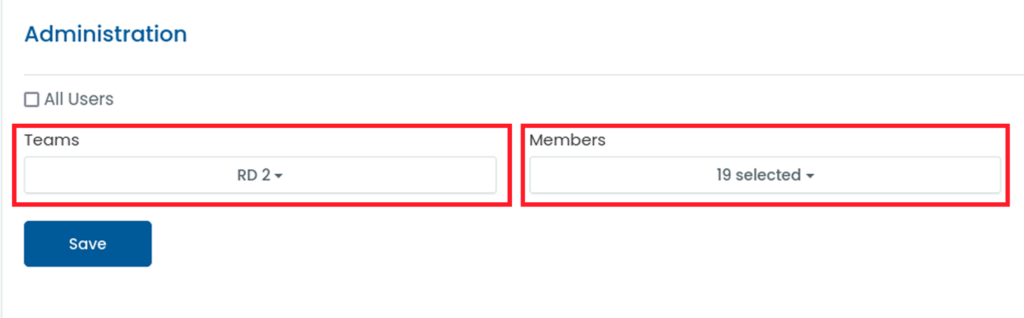
- Enable the All Users checkbox if you want to assign the manager to all users.
- Click Save to apply the changes.
Method 2: Assign a Manager from the Team Page
Use this method when you want to quickly add a manager to a specific team.
Steps
- From the Admin left panel, click Register and select Team.
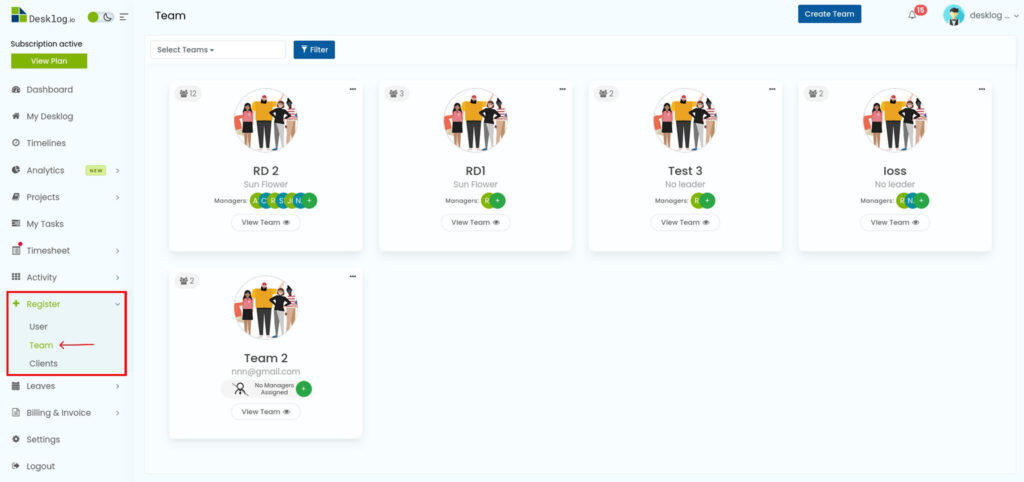
- Locate the team you want and click View Team.
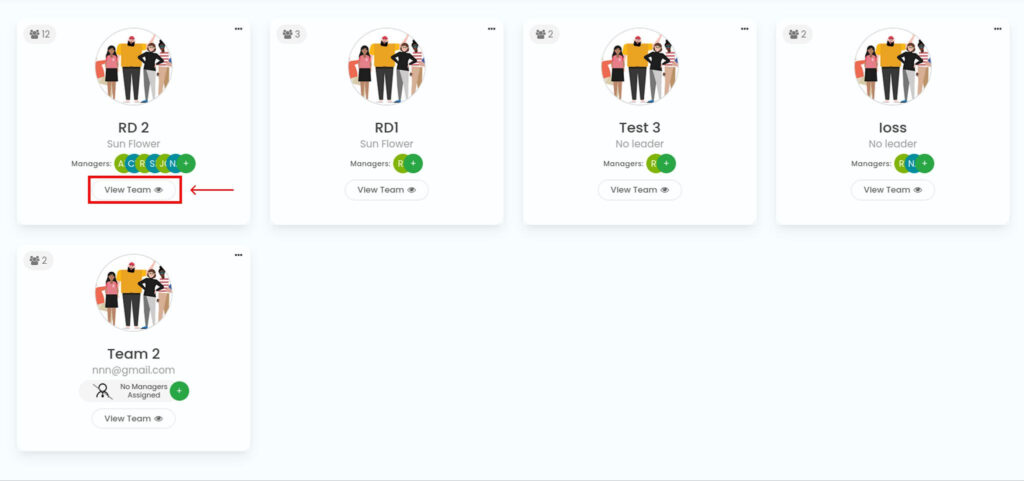
- In the top-right corner of the screen, click the + icon next to Managers.
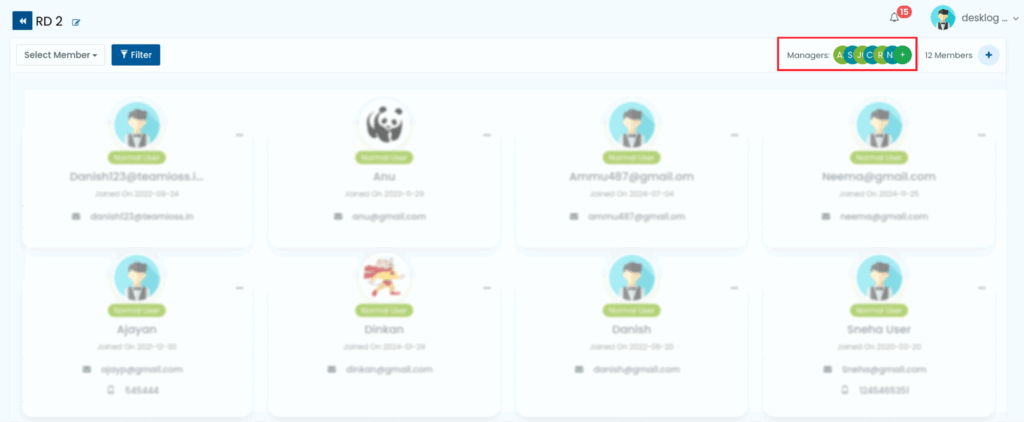
- Select the manager from the list and click Add.