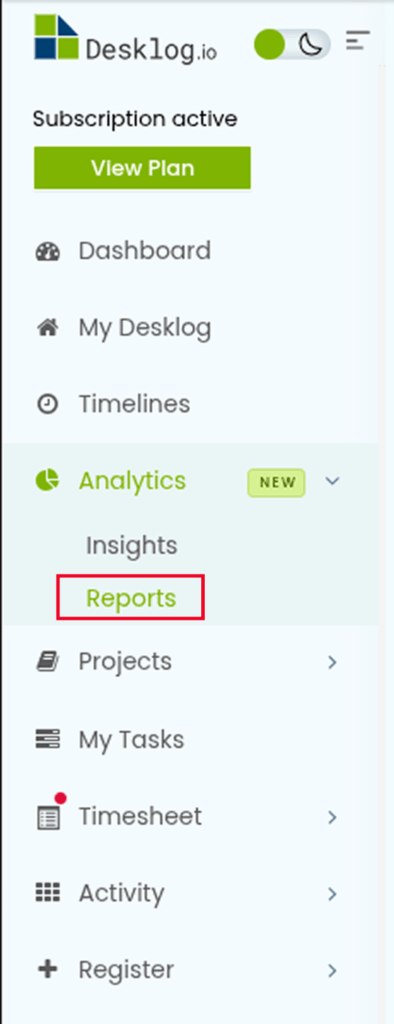
To get a timesheet report in Desklog, go to Analytics from the side menu bar and select Reports.
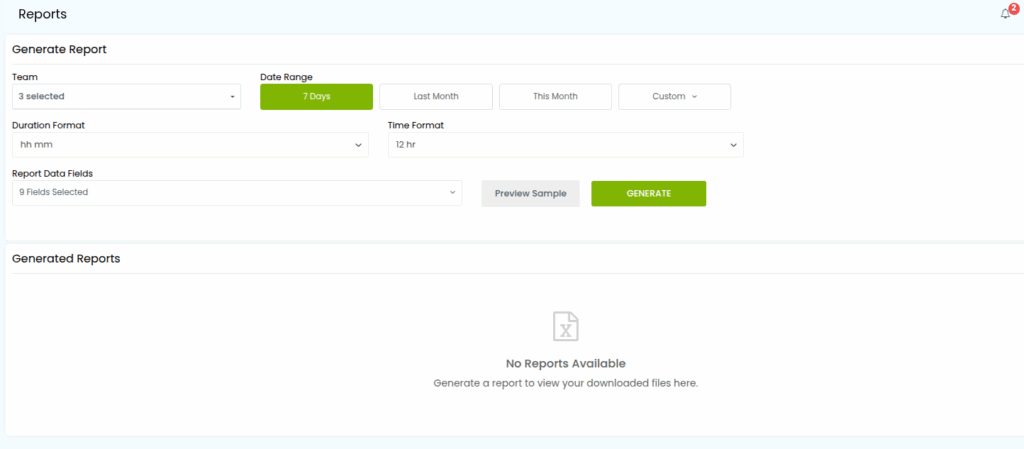
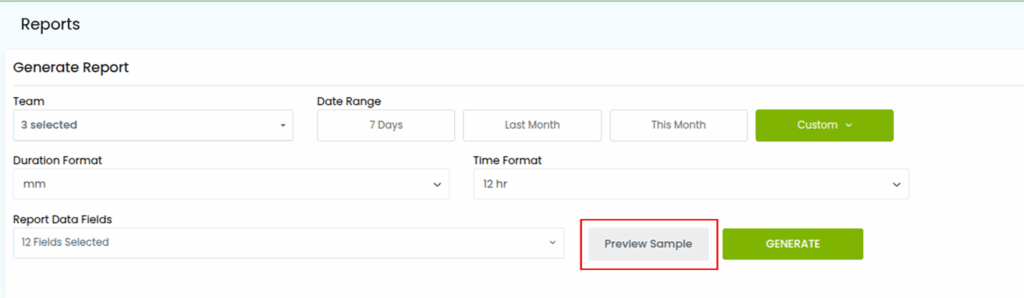
In the Reports section, you can generate a timesheet report by customizing it according to your requirements.
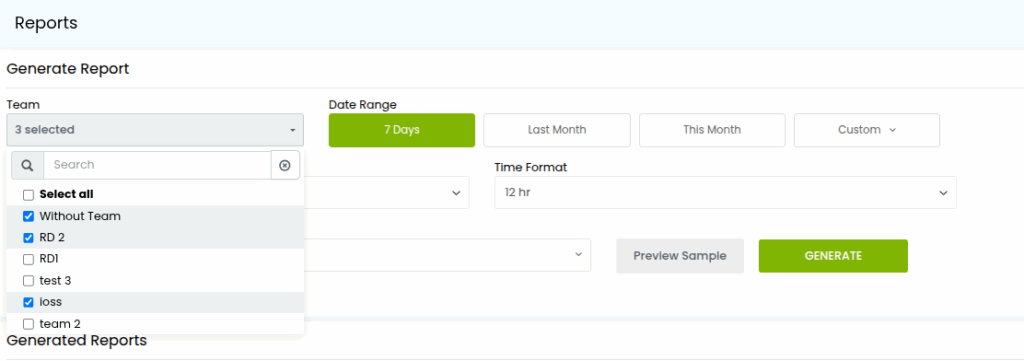
Step 1: Select Team
Choose a team from the dropdown menu. You can select specific teams or choose All Teams.
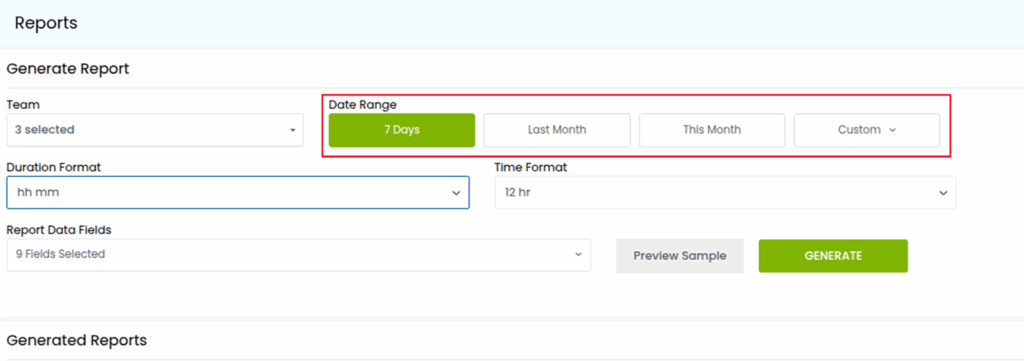
Step 2: Select Date Range
Select a date range based on your requirement. You can choose from Last 7 Days, Last Month, This Month, or Custom.
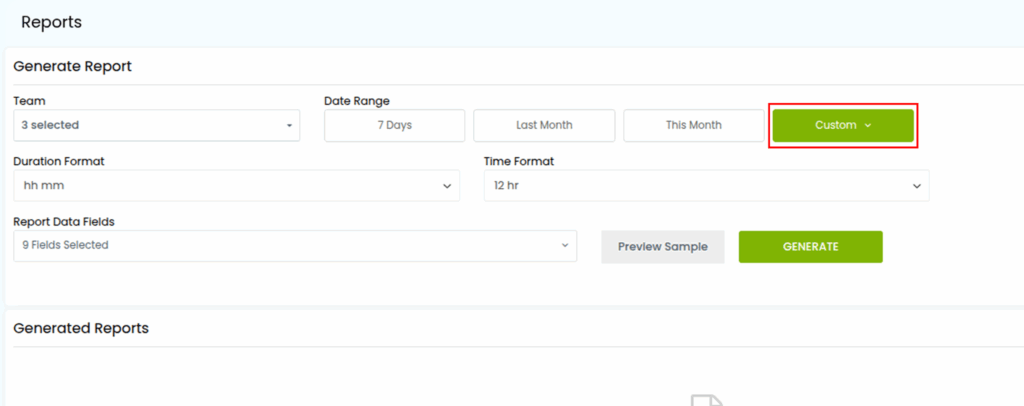
To set a custom date range, click Custom and select your preferred dates.
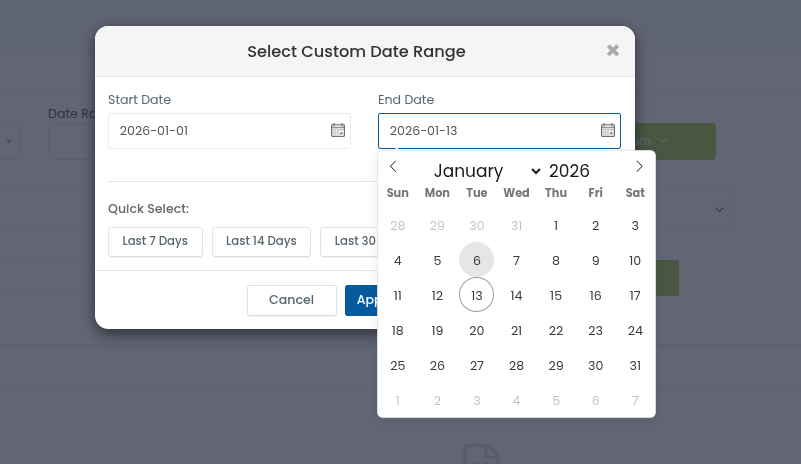
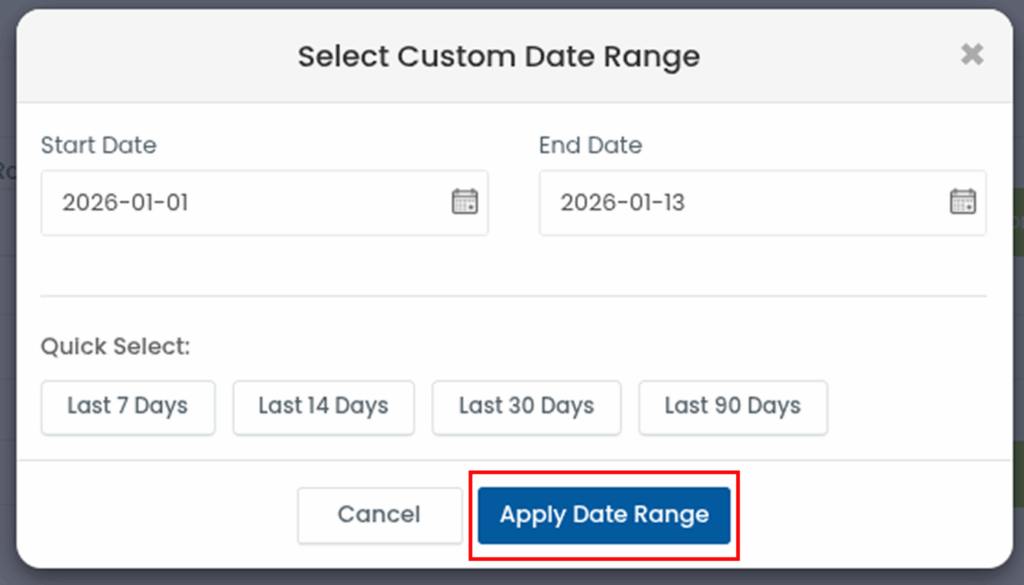
After selecting the dates, click Apply Date Range.
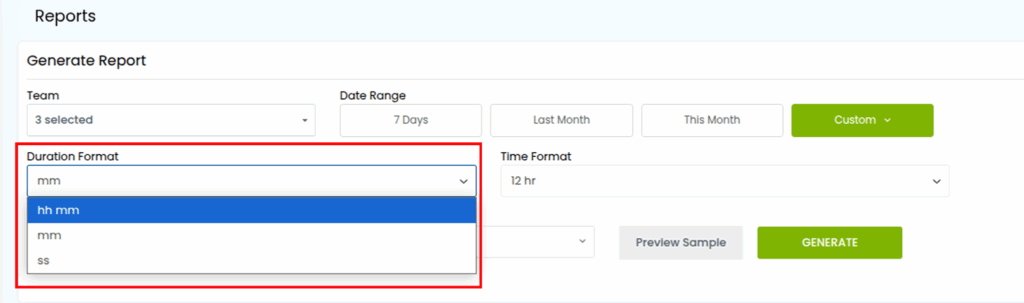
Step 3: Set Duration Format
Choose the Duration Format from the dropdown menu.
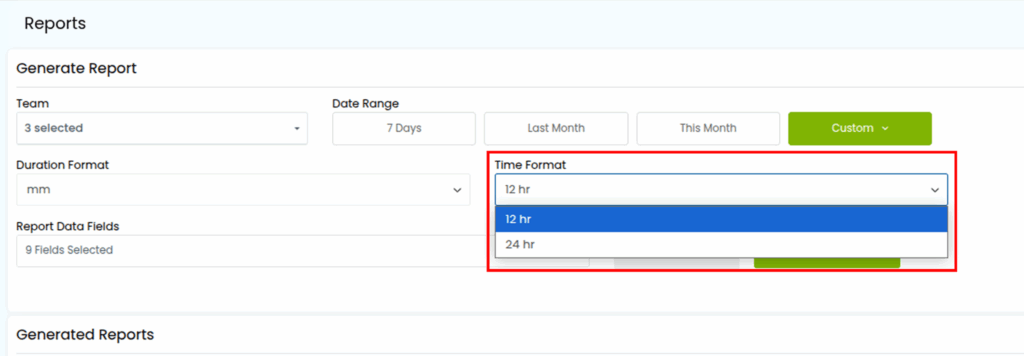
Step 4: Set Time Format
Select your preferred time format; 12-hour or 24-hour.
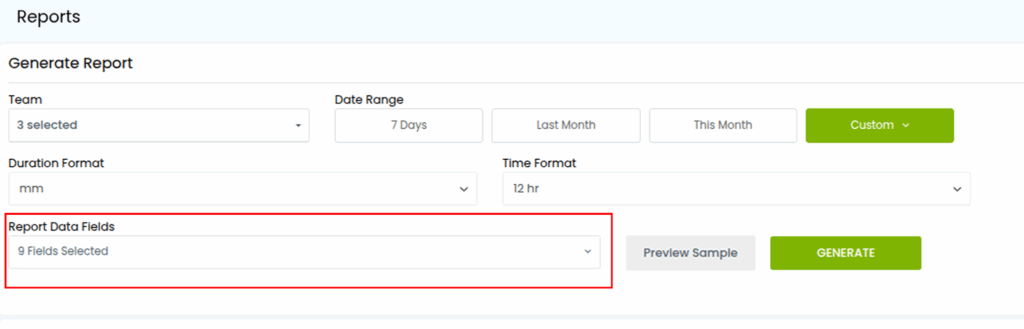
Step 5: Choose Report Data Fields
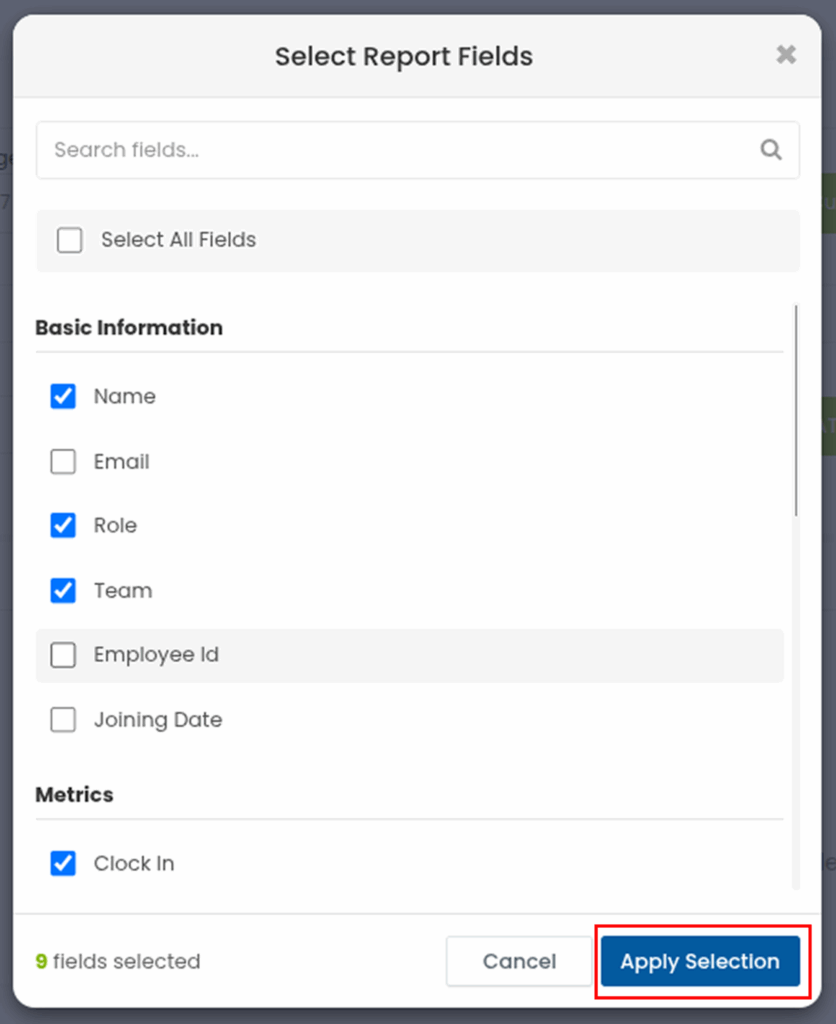
Desklog allows you to customize the report data fields so you get only the information you need.
Click on Report Data Fields, then either select All Fields or choose specific fields, and click Apply Selection.
Step 6: Get Preview
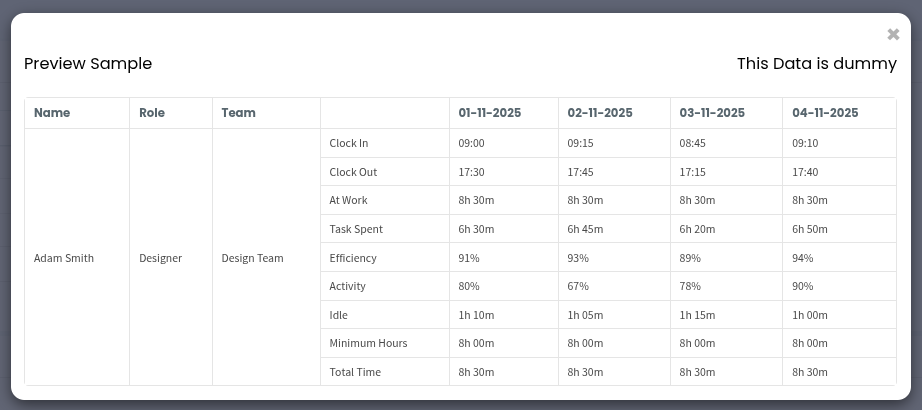
Click Preview Sample to view a preview of your timesheet report.
Step 7: Generate Report
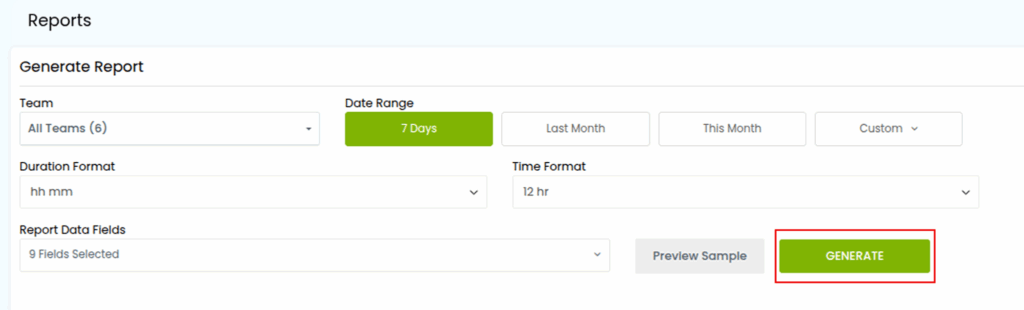
After setting all the required options, click Generate to download your customized timesheet report.
Step 8: Download Report
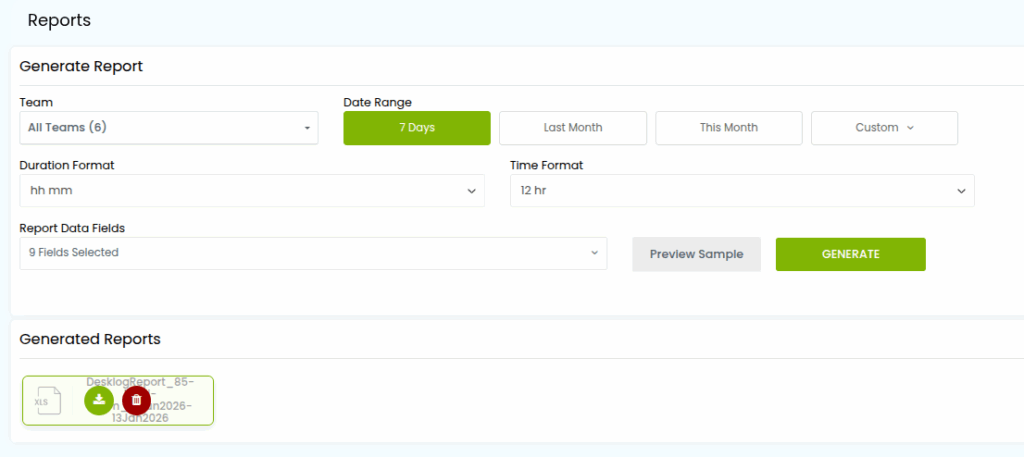
The generated report will appear in the Generated Reports section, you can download it from there.