
Admins can configure preferred tracking start and end times according to the organization’s working schedule. They can also select the specific days that need to be monitored, ensuring tracking aligns with company policies.
To set up tracking days:
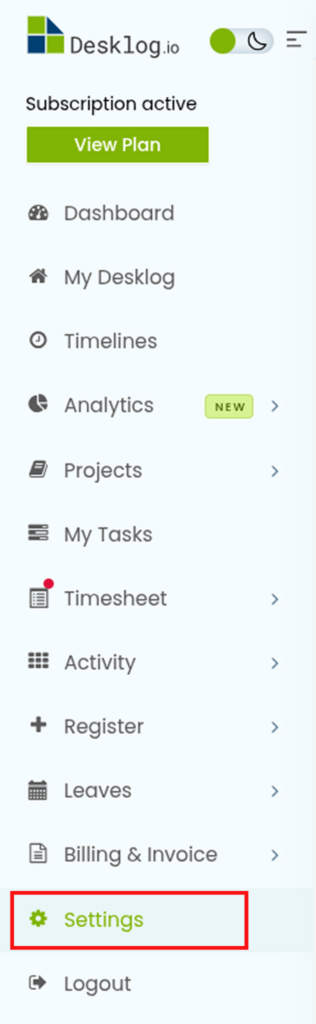
Go to Settings from the left-side menu bar.
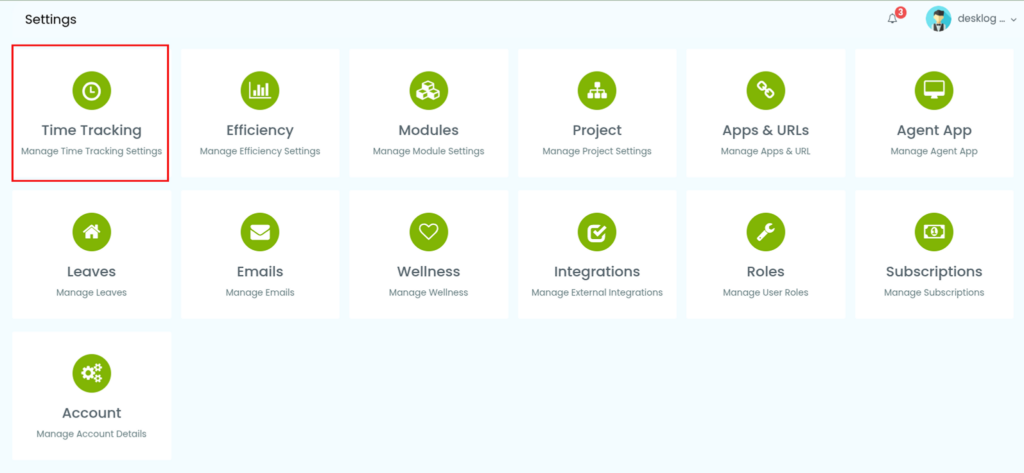
Navigate to the Time Tracking configuration section.
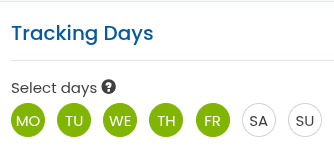
From the open window, select days, the specific working days for tracking a user.
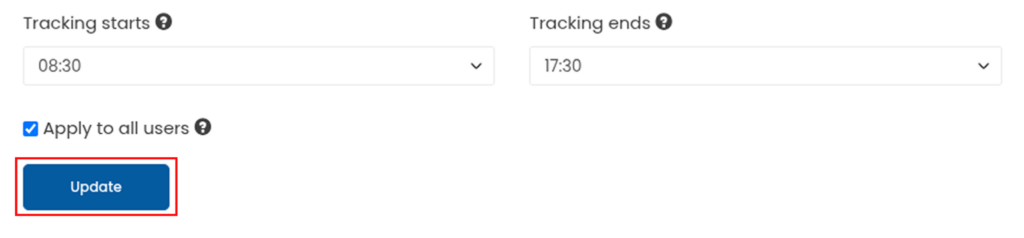
You can configure both Tracking Start Time and Tracking End Time based on your organization’s working hours.
Tracking Start Time: Set the preferred time when daily user activity tracking should begin. This ensures tracking starts in alignment with official work schedules and prevents activity from being recorded outside designated hours.
Tracking End Time: Define the time when daily user activity tracking should stop. This helps maintain clear work boundaries while ensuring accurate and relevant reporting.
If needed, you can enable Apply to All Users (optional).
When activated, the selected tracking start and end times will be applied to all existing users in the organization. This ensures consistent tracking standards across teams and automatically applies the same configuration to future users, simplifying administration and maintaining uniform monitoring policies.
After configuring all the required settings, click the Update button to save and apply the tracking days.