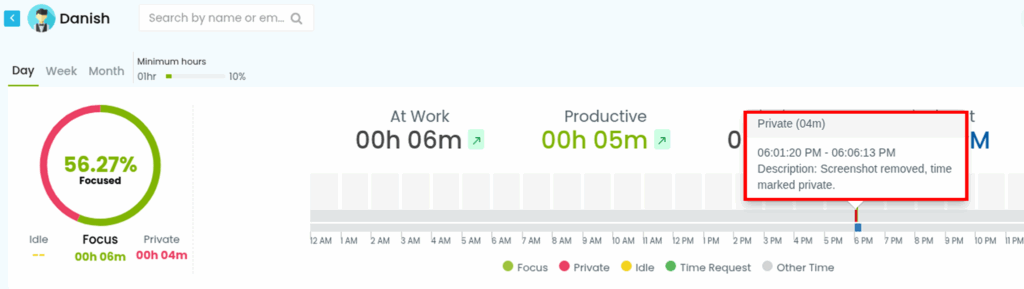
Please note: You’ll need Desklog version 2.7 to access this feature.
Follow the steps below to mark tracked time as Private when deleting screenshots in Desklog:
- Go to Activity from the Admin left panel and select Captures.
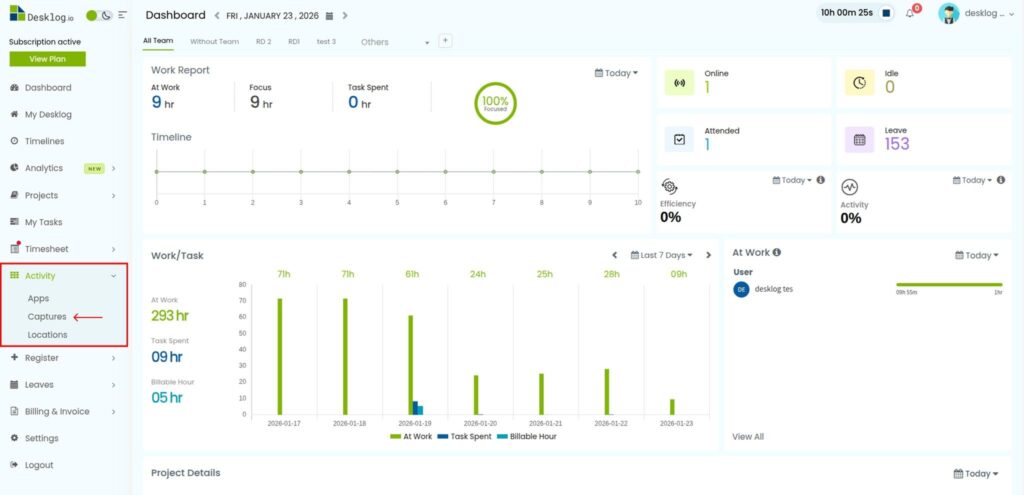
- Choose the user whose screenshots you want to delete.
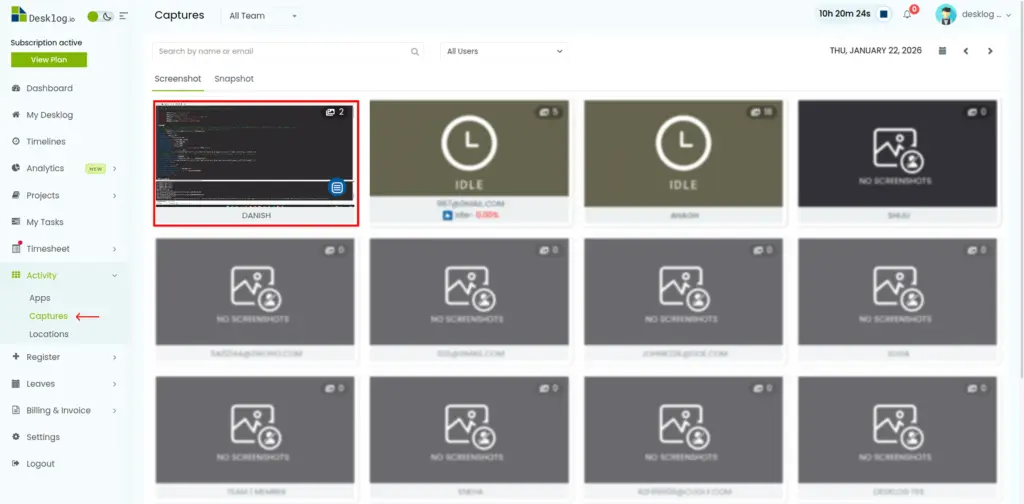
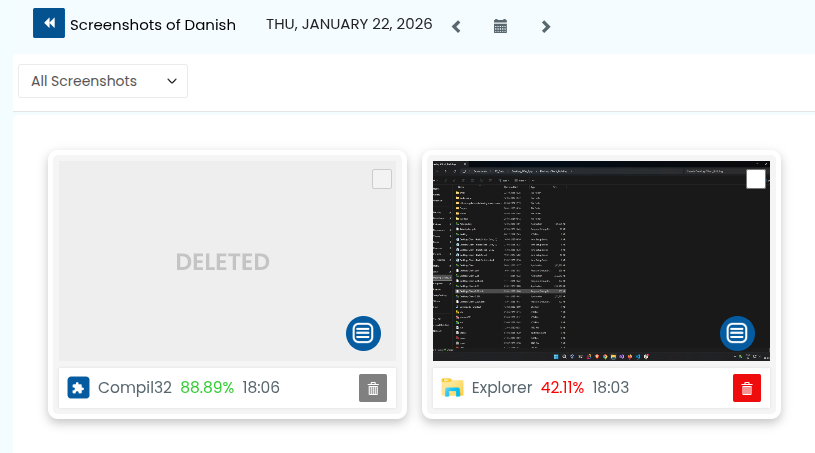
- Select the screenshot you want to remove and click the Bin icon.
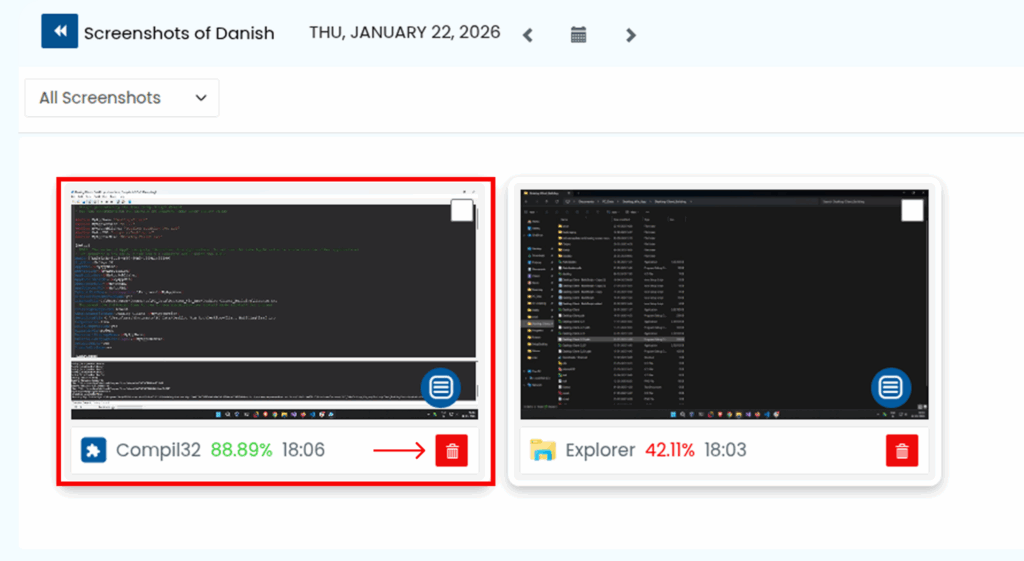
- A confirmation pop-up will appear. Enable the option to convert the associated time to Private so it is not counted as work activity.
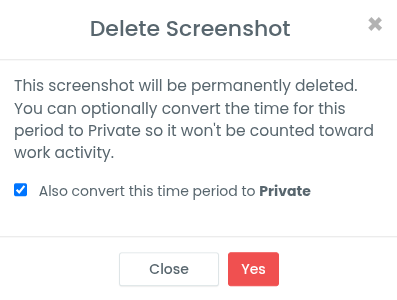
- Click Yes to delete the screenshot. Your screenshot will be deleted.
- To verify, go to Timelines from the left panel and search for the user.
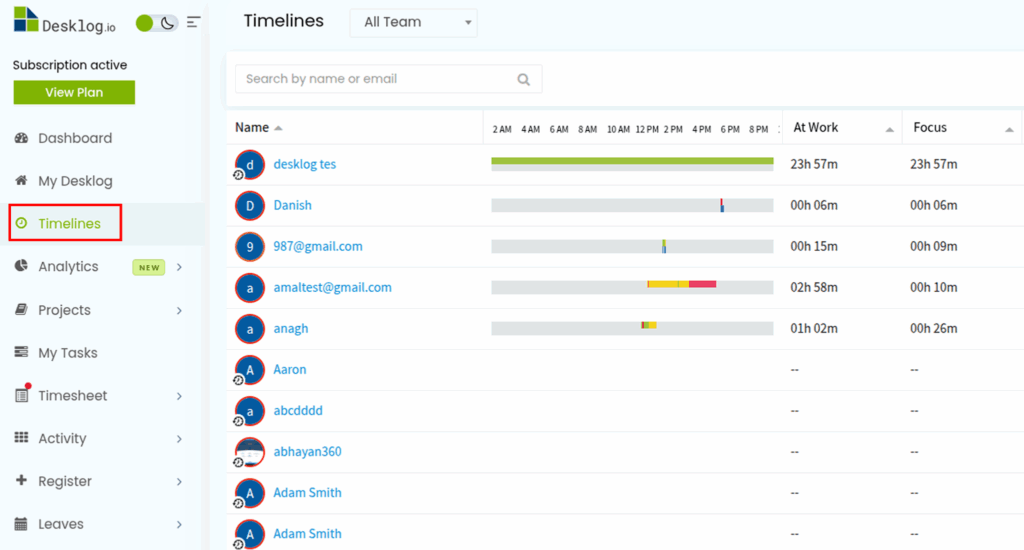
- The time linked to the deleted screenshot will now be marked as Private in the timeline.